Automatic Reply or Out-of-Office Message Using the Outlook Desktop App
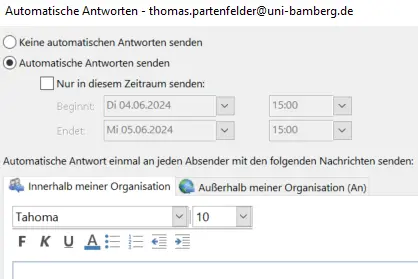
Figure 1: Create an Automatic Reply
To set up an automatic reply or out-of-office message in the Outlook program installed on your computer, start Outlook as usual.
Next, click Information under File in the menu, and then select Automatic Replies.
In the window that appears, please select the Send Automatic Replies option. You can then enter any text you like.
Figure 1 illustrates the content described above.
Figure 2: Additional Options for Automatic Replies
If you'd like, you can also set a time period of your choice for your automatic reply.
To ensure that the automatic reply is also sent to senders who are not employed by the University of Bamberg (such as students), next select the Outside My Organization tab in the same window.
There, you must check the box next to Send an automatic reply to people outside my organization and select the option Anyone outside my organization.
Figure 2 shows the additional options described earlier.