To set up an email account, you must have a valid user account (BA number + corresponding password).
These instructions apply to iOS 14 and later. Please note that the interface may look different in other versions.
For privacy reasons, we cannot recommend the Outlook app for mobile devices. These instructions are designed for Apple Mail.
Adding an email account
Figure 1: Add Account
Go to the Mail > Accounts menu item via Settings.
Then tap Add Account.
Figure 2: Add Mailbox
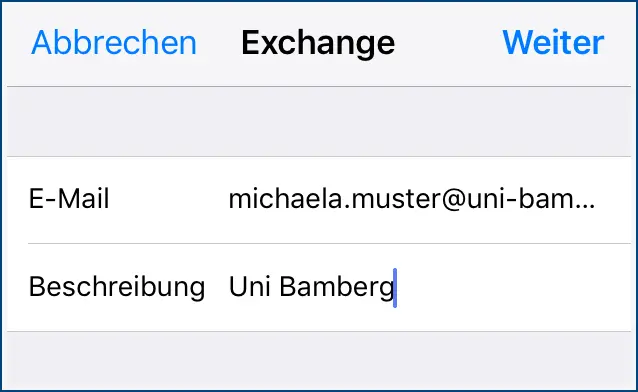
After tapping Add Account, select Microsoft Exchange as the account type. You will then be asked for your login credentials. Fill out the first window as follows:
Email: Your university email address
Description: Any, for example, the University of Bamberg
To continue, tap Next. Please confirm the message that appears by tapping Sign In.
Figure 3: Setting up a mailbox for employees
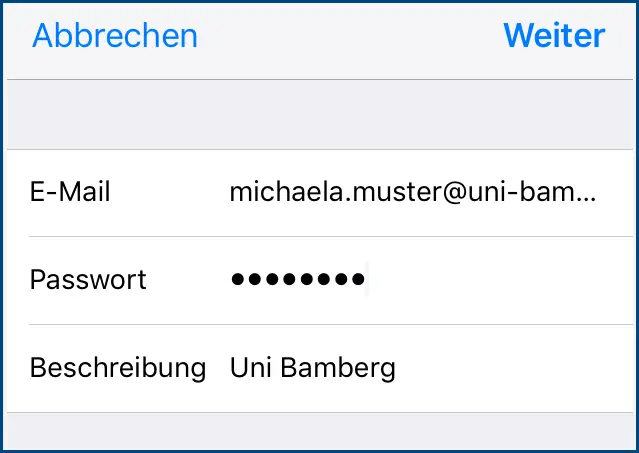
Next, enter the password from the IAM-Portal in the email-app and tap Next. Finally, you will be asked which services you would like to use with the email account you just set up. To disable a service you don't want, simply slide the corresponding slider to the left. Click the Save button to save your email account; you'll find it in the Mail app.
Note!
If you are prompted to enter a domain and username, please enter the following: