Equipment for hybrid teaching scenarios
Video and audio equipment in event venues
Department I/3 – Media Technology is responsible for equipping and managing event venues:
Equipment hire for hybrid event formats or recordings
Who is allowed to borrow items?
The individual items and equipment packages featured on this page are loaned exclusively to members of staff at the University of Bamberg. The equipment may be collected and returned by another person (e.g. a student assistant).
Which items can be borrowed?
Video packages
The small video package (Basic) consists of
- a webcam (Logitech C920 HD Pro) and
- a boundary microphone (Jabra Speak 410 or 510).
It can be used for video recordings or video conferences in the workplace or in an event room if it is sufficient simply to clip the camera onto the screen or monitor, and there is no need to record or broadcast the audience’s contributions directly, or if there is no audience in the same room at all.
Quick guide:
- Connect the Jabra Speak and webcam to your PC or laptop using a USB cable. The first time you connect them, the Jabra Speak and webcam will be set up automatically by your device.
- Jabra Speak and the webcam are automatically selected by your PC or laptop as the devices to be used and are utilised in video conferencing software. If necessary, you will need to select Jabra Speak as the input and output device in your device’s sound settings.
The mid-tier video package consists of
- a webcam (Logitech C920 HD Pro)
- a condenser microphone (Jabra Speak 510)
- a tripod
- one or two USB extension cables.
It is suitable for video recordings or video conferences in the workplace or in an event room, provided that the audience’s contributions do not need to be recorded or broadcast directly, or if there is no audience in the same room at all.
Quick guide:
- Adjust the tripod to the correct height and attach the camera to it.
- Connect the Jabra Speak and webcam to your PC or laptop using a USB cable – use the extension cables if necessary. When you connect them for the first time, the Jabra Speak and webcam will be set up automatically by your device.
- Jabra Speak and the webcam are automatically selected by your PC or laptop as the devices to be used and are utilised in video conferencing software. If necessary, you will need to select Jabra Speak as the input and output in your device’s sound settings.
The large video package (Bluetooth) differs from the medium and small video packages in terms of the type and number of microphones:
- a webcam (Logitech C920 HD Pro)
- two condenser microphones (Jabra Speak 710)
- a tripod
- a USB extension cable
Quick guide:
- Adjust the tripod to the correct height and mount the camera on it.
- First, connect the Jabra Speak and the webcam to your PC or laptop using a USB cable – use the extension cables if necessary. The first time you connect them, the Jabra Speak and webcam will be set up automatically by your device.
- Jabra Speak and the webcam are automatically selected by your PC or laptop as the devices to be used and are utilised within video conferencing software. If necessary, you will need to select Jabra Speak as the input and output in your device’s sound settings.
- Switch on the second Jabra Speak and establish a connection by pressing the Link button on both Jabra Speak devices at the same time.
Other devices
Deployment scenario
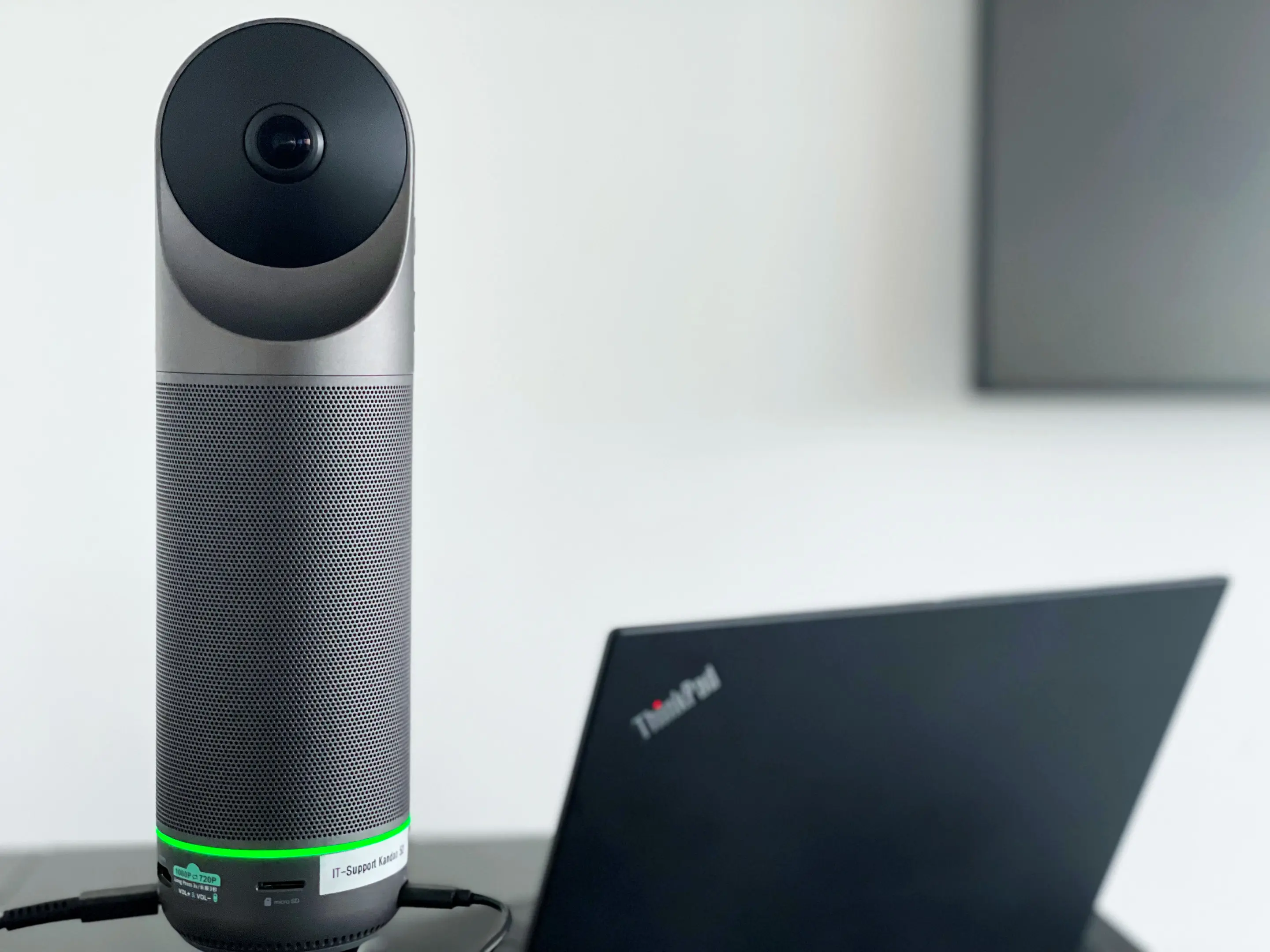
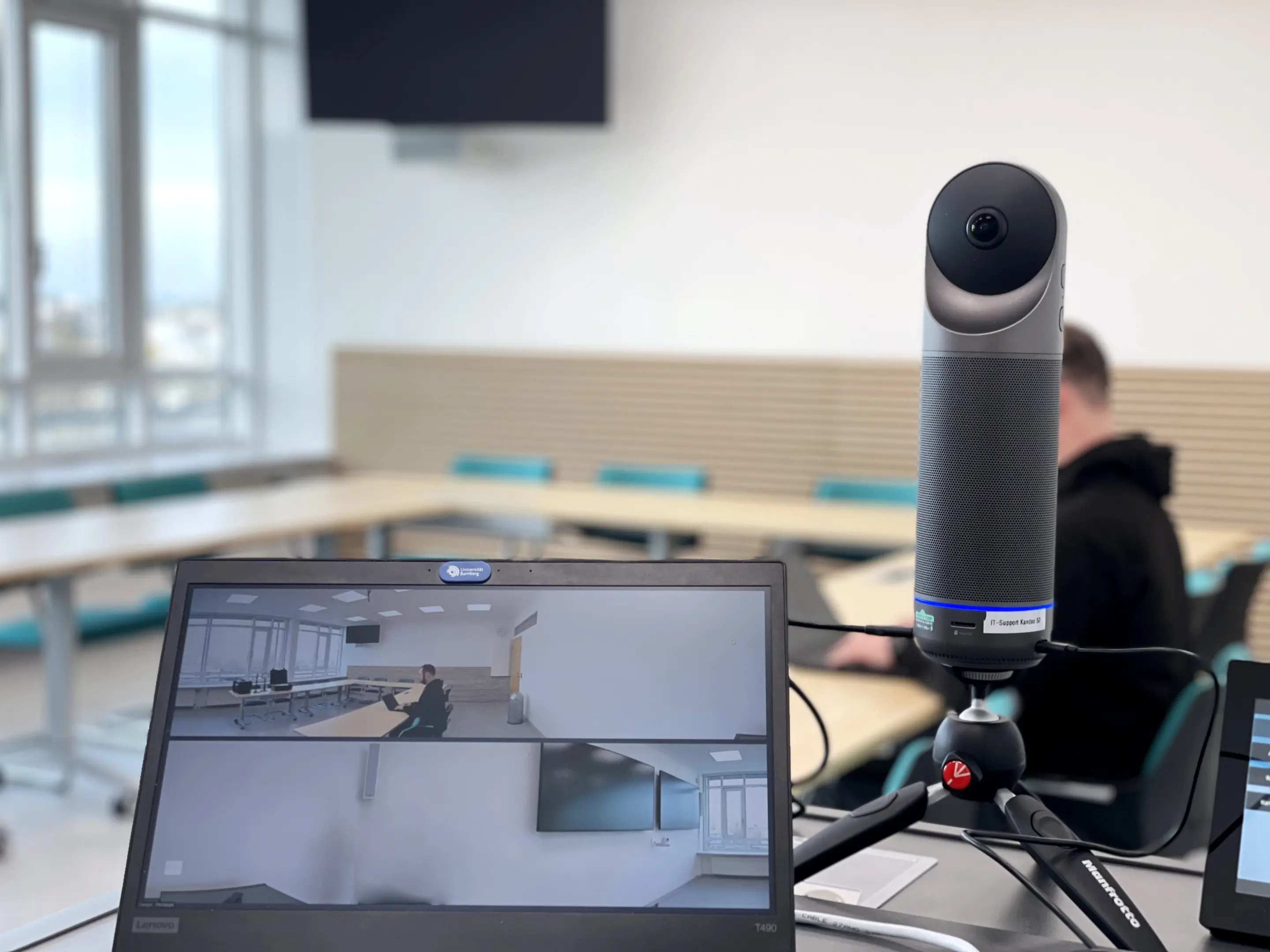
The Kandao Meeting Pro 360° camera is suitable for recording or live streaming seminars and small-group sessions where presentations and discussions alternate or where there is interaction within the group. Contributions from the audience are included in the recording or stream. Speakers are automatically recognised and the camera can focus on them.
Please note that this 360° camera must be permanently connected to the mains.
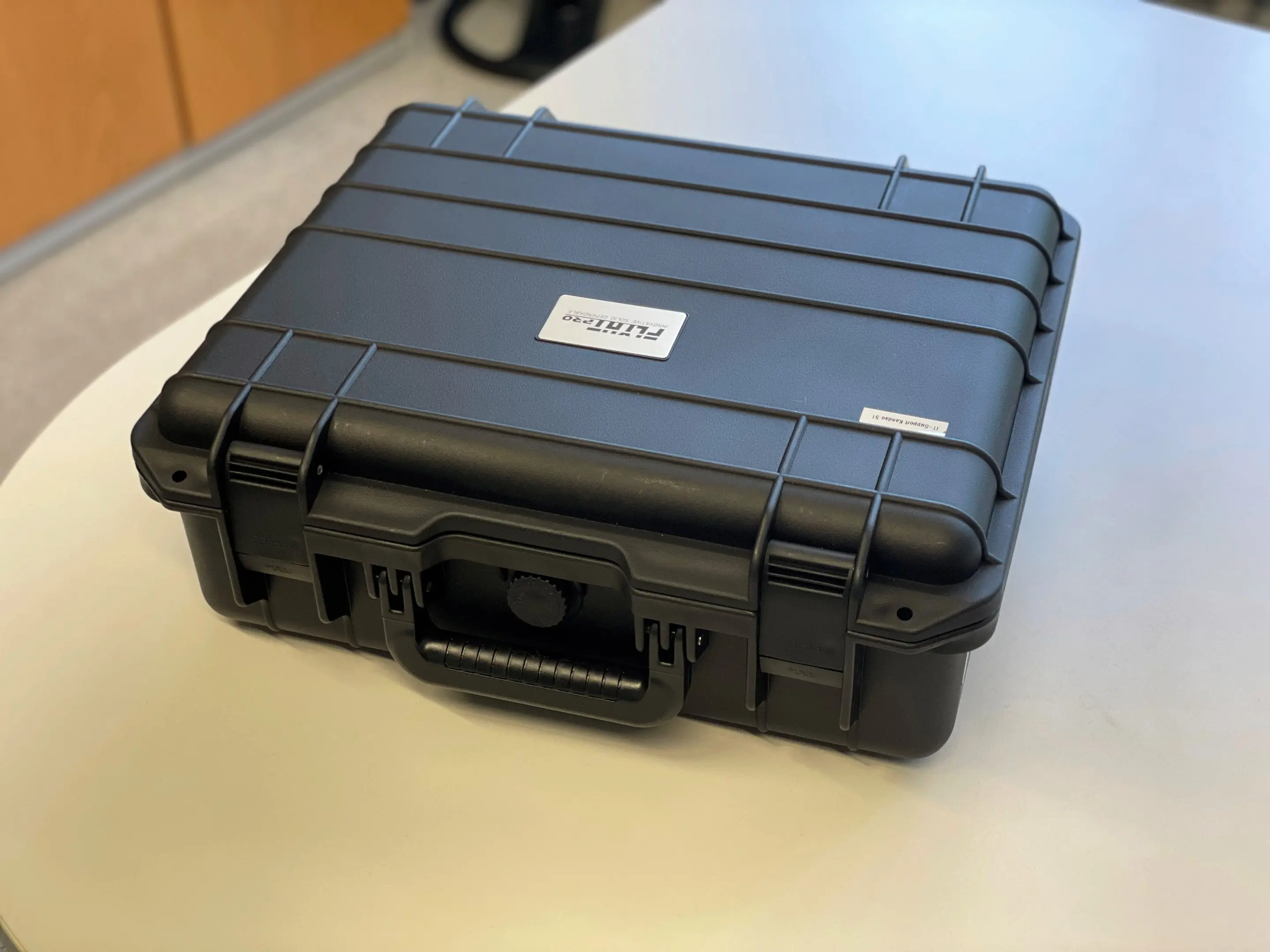
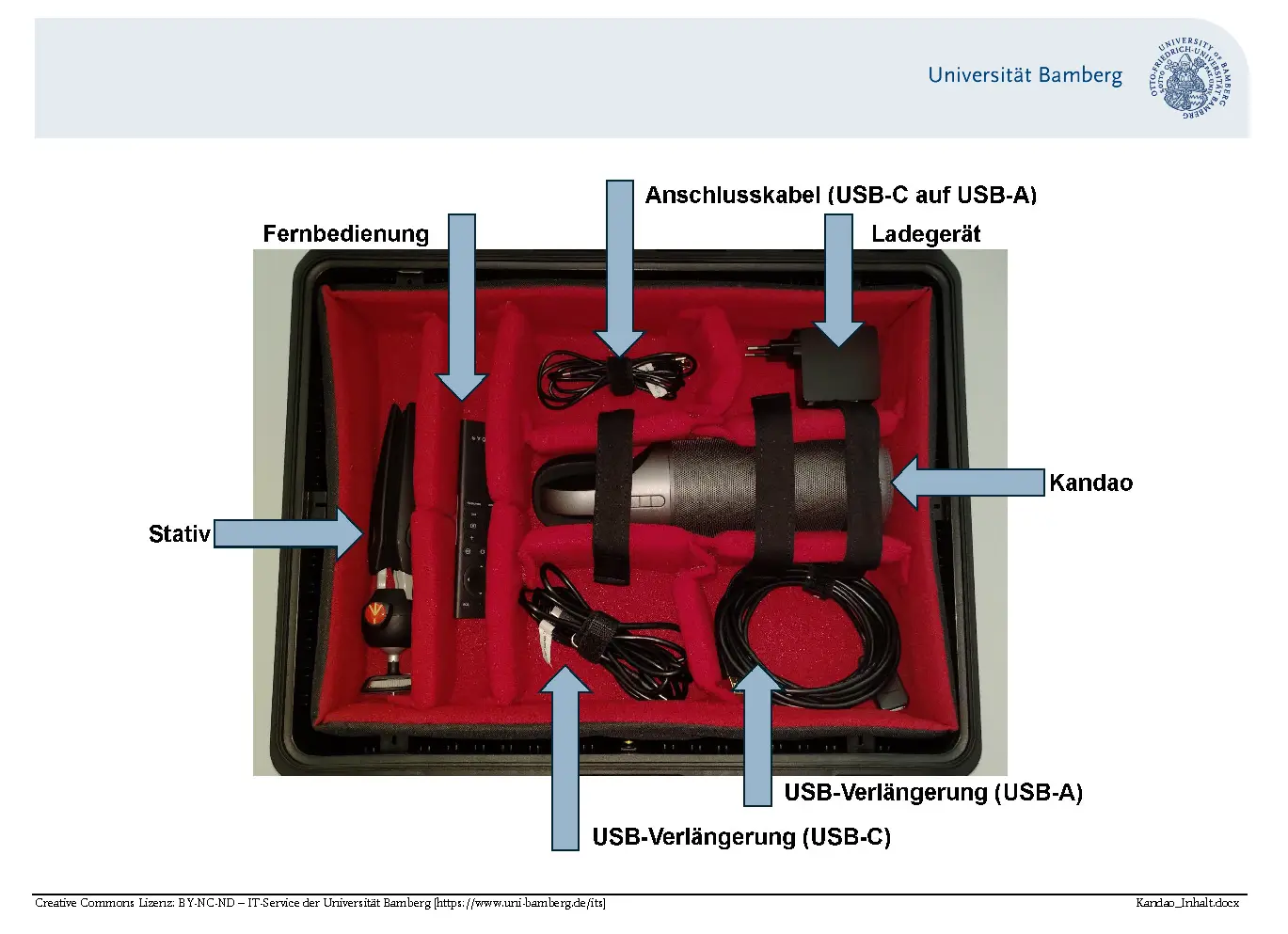
Components of the package
- Camera: Kandao Meeting Pro 360°
- Remote control (including batteries)
- Tabletop tripod
- Cable: USB-C to USB-A (+ USB-A extension cable)
- Cable: USB-C to USB-C
- Power adaptor: USB-C
Quick Guide
- Adjust the tripod to the correct height and attach the camera to it
- Connect the camera to the mains adapter and a socket (connect to the port on the camera labelled USB-C + ↯ using a USB-C to USB-C cable).
- Position the camera and connect it to the device via a USB cable (connect to the camera port marked with the laptop icon using a USB-C to USB-A cable)
- Start the camera using the power button on the device
- Select Kandao Meeting as the audio device and camera in your video conferencing or recording software
- You can switch between camera views using the Mode button on the device or the remote control (see detailed instructions)
Deployment scenario
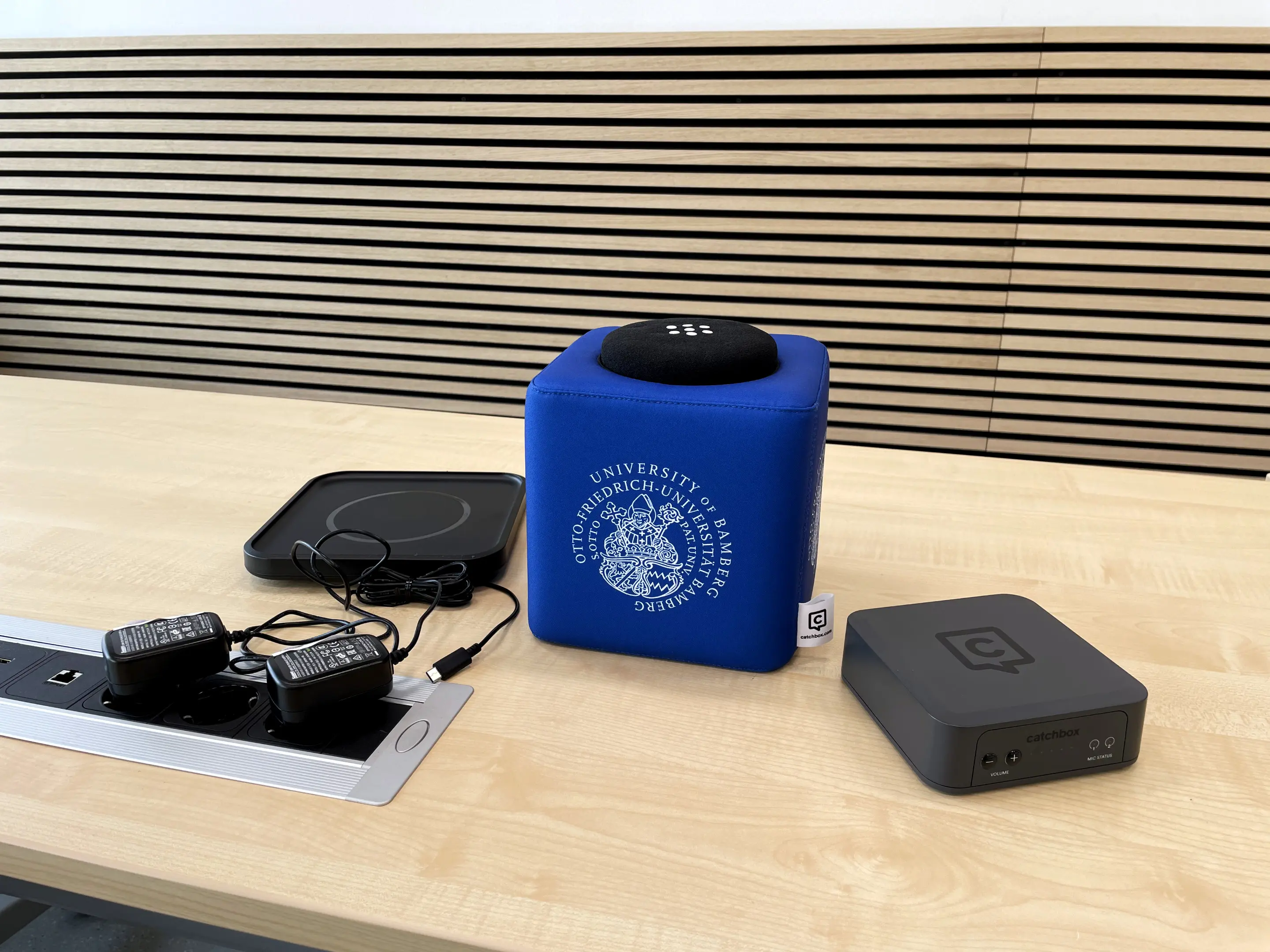
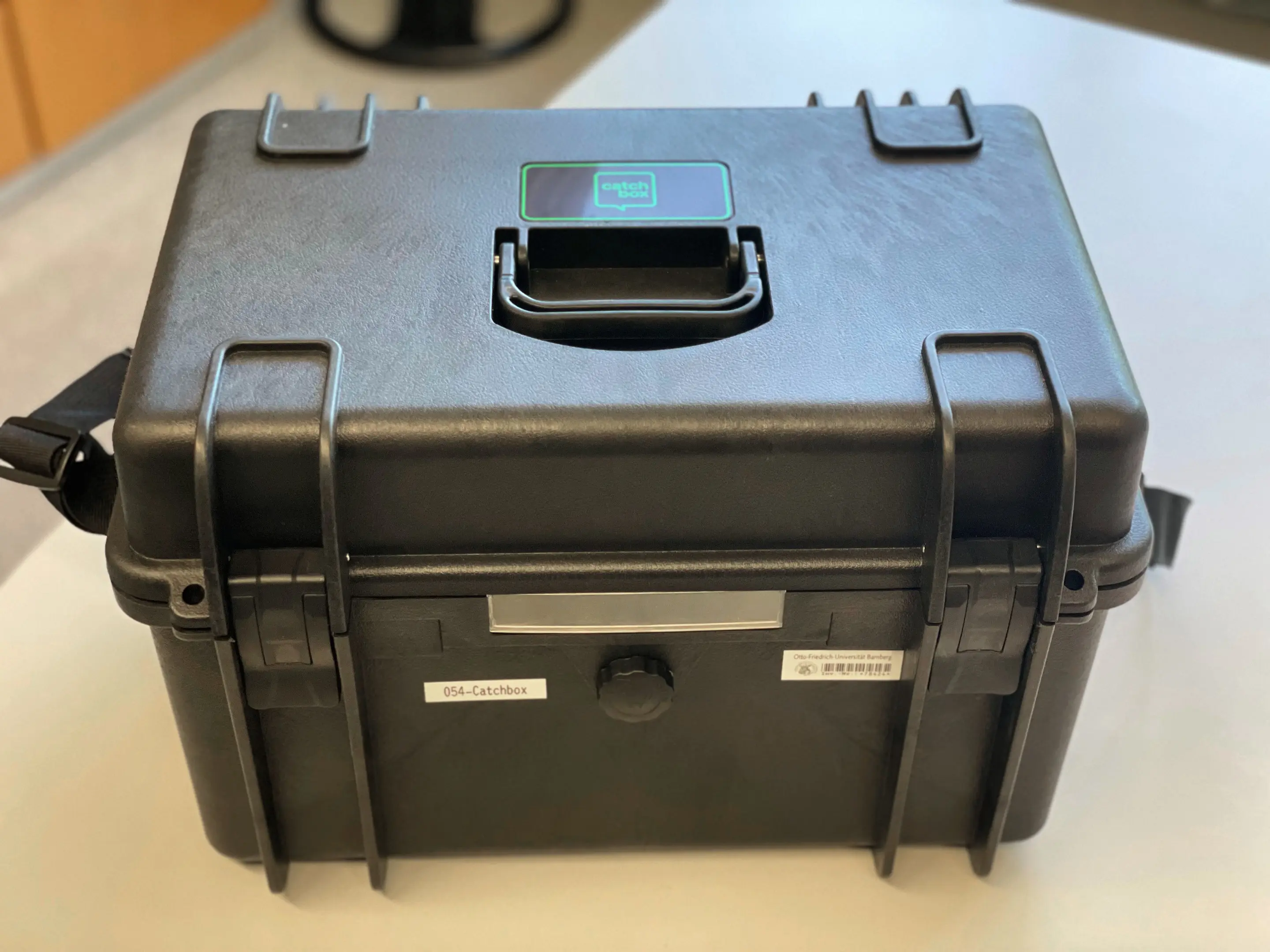
The Catchbox throw microphone is ideal for larger, informal discussion groups where participants are seated too far apart to use fixed microphones. The throw microphone is ideal for use at events such as symposia and conferences, or in larger seminars, to ensure that contributions to the discussion can be heard by everyone in the room and/or by remote participants via video conferencing.
Components of the package
- Catchbox with microphone
- Charging station (inductive)
- Wireless receiver
- 2 x chargers
- Cable: USB-A to USB-C
- Cable: 3.5 mm jack plug to 6.35 mm
Quick Guide
- Connect the radio receiver to a laptop/PC (using a USB-A to USB-C cable or a jack plug) or to the on-site sound system (using an XLR cable)
- Connect the radio receiver to the mains using the charger supplied
- Take the microphone out of the Catchbox, switch it on, and then put it back into the Catchbox
- Select the Catchbox as your microphone in your preferred recording or conferencing software
- Optional: Use of the charging station (not necessary for shorter events: battery life approx. 10 hours)
- Connect the charging station to the mains using the charger
- Place the Catchbox on the charging station
In the following Rooms with XLR inputs (german only), it is possible to connect to the media equipment in the room using an existing XLR cable.
Deployment scenario
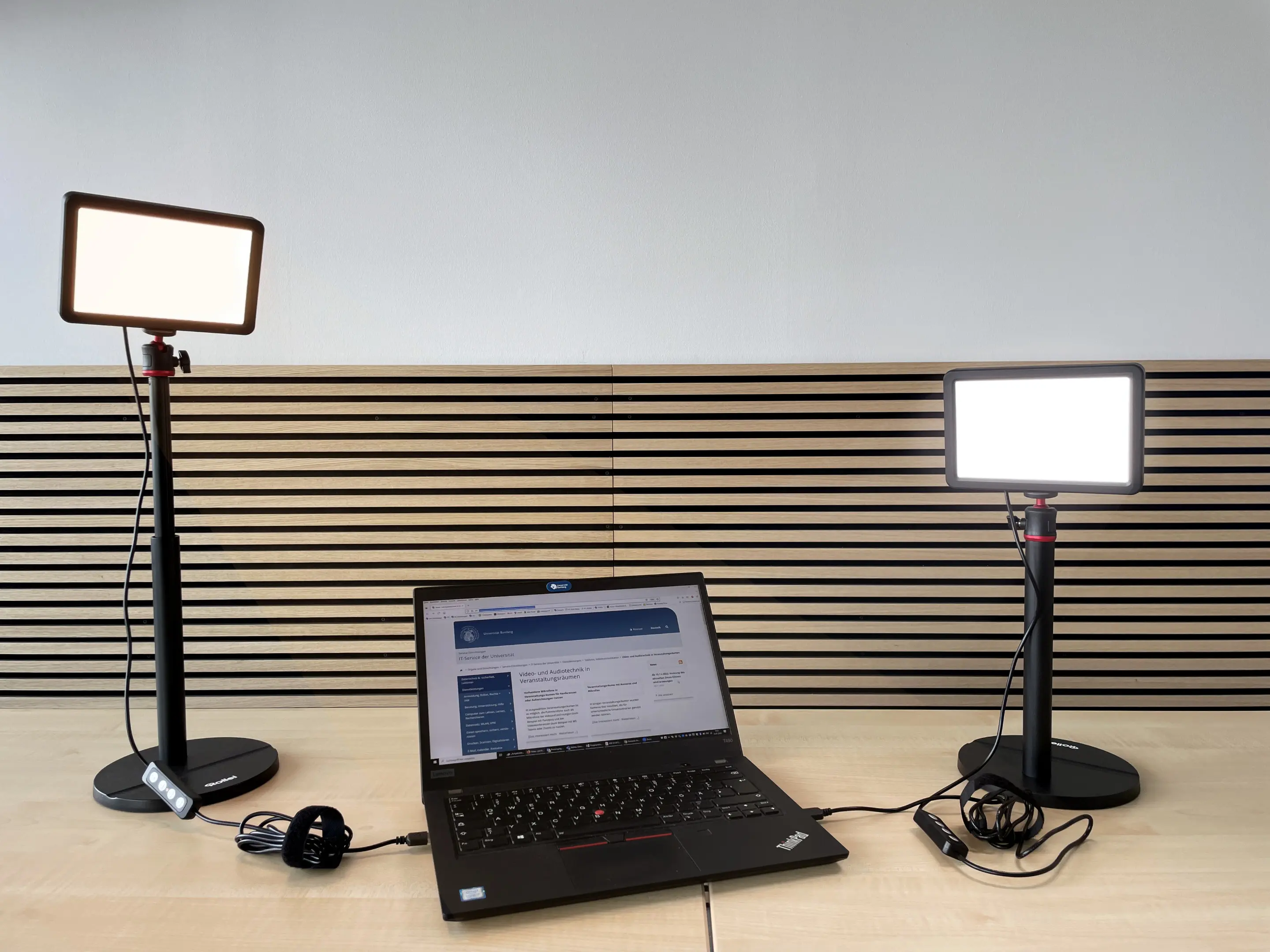
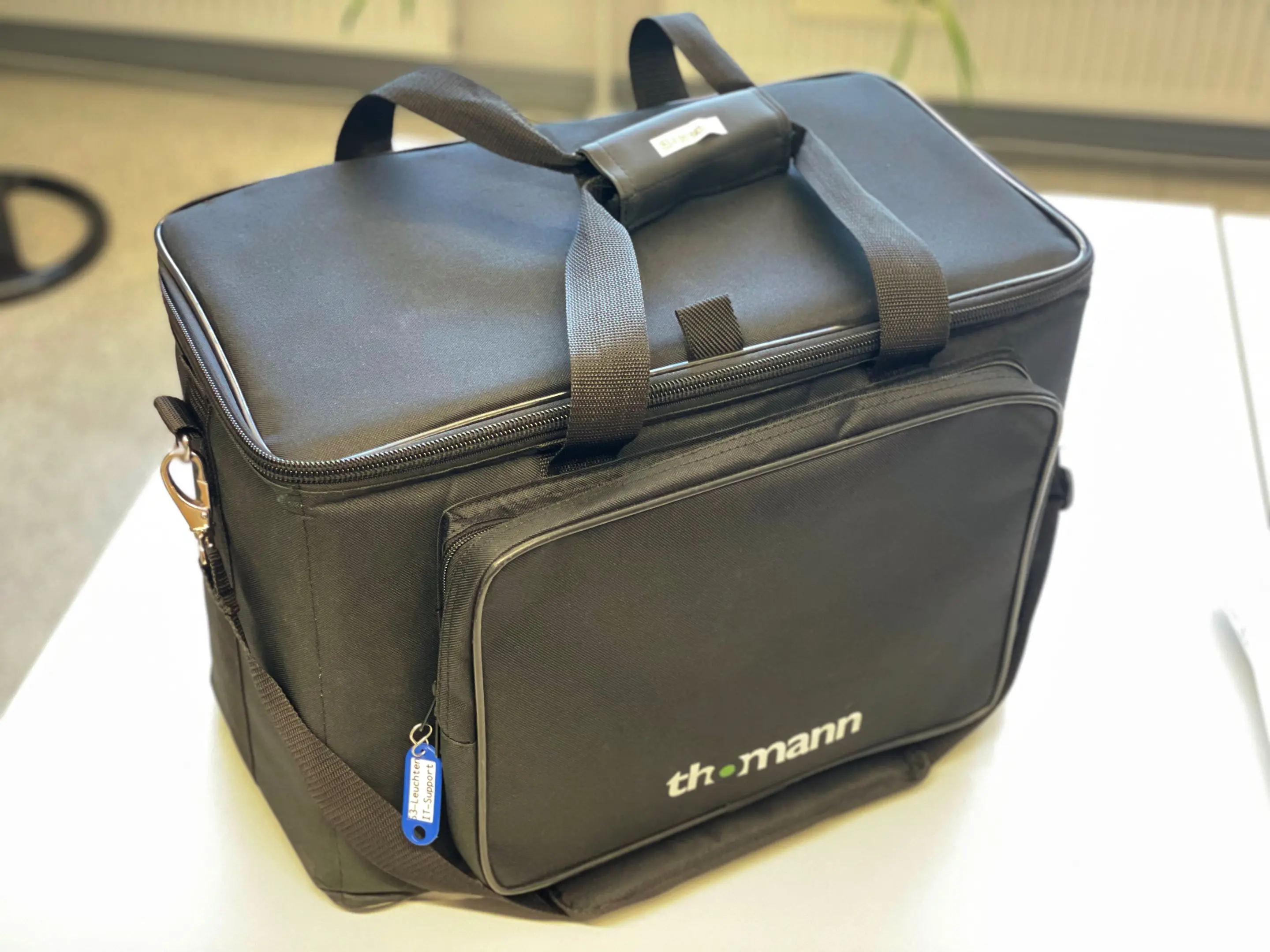
To ensure you appear ‘in the best light’ during a conference, an important video meeting or in a video recording – whether at your desk or in an event room – you can use special table lamps.
Components of the package
- 2 x Table lamps
- 1 x USB-Hub
Quick Guide
Our video table lamp set consists of two corded table lamps.
- Power supply: Each light is connected to the computer via a standard USB-A plug and is powered in this way. The cable is 2.1 m long. If your computer does not have enough ports, a USB hub is included in the pack.
- Adjustment: The lights are height-adjustable from 28.5 cm to 78 cm and can be precisely aligned using a ball joint.
- Colour temperature and brightness: Three colour temperatures (3200 K, 4500 K and 5500 K) can be selected. The brightness can be adjusted in eight steps using a simple control panel located directly on the connection cable.
What is the procedure for borrowing a video package or another device?
- Please send an email to it-support(at)uni-bamberg.de and include the following information:
- Type of video package/device: Small video package (Basic), Medium video package, Large video package (Bluetooth), Camera: Kandao Meeting Pro, Throwable microphone: Catchbox, Video table lamps
- Our IT support team will be happy to advise you on choosing a video package or device.
- Collection point: IT Support in the Data Centre building, Branch Library 4 or ERBA
- Date and time of collection (one-off or recurring for regular events)
- Date and time of return
- It is also possible to book the video package or equipment on a regular basis; in that case, please specify the day of the week and the time slot.
- IT Support is responsible for the deployment.
- You will collect the parcel or device at the specified time and return it to the original collection point on the agreed date.