The campusprint User Service
In the campusprint user service, you can manage your print and scan jobs via a web interface, and with the new mobilePrint feature, you can even submit print jobs without having to install the corresponding printer driver.
To use the features listed above, simply log in to the campusprint Benutzerservice with your user account (BA number or IC number from your cost center card and the corresponding password). You will then see all available features in the middle of the page; click on them to access the corresponding service. Alternatively, you can click on the “Services” area (at the top of the page) to view all available services again.
mobilePrint
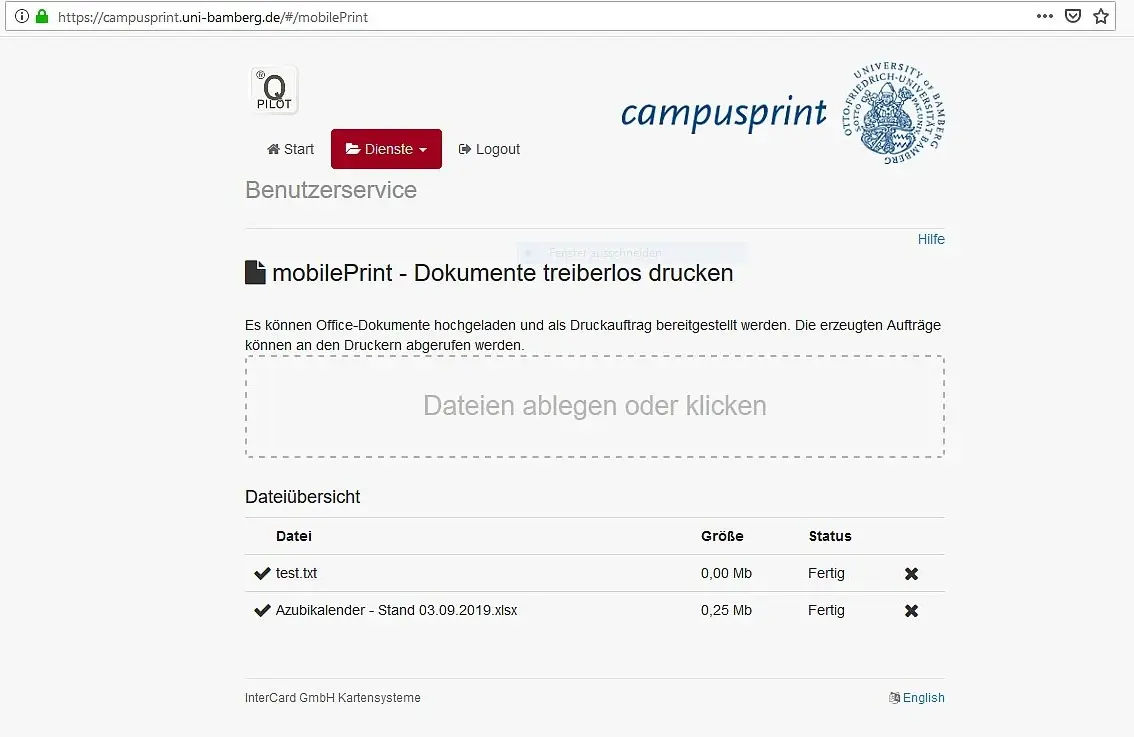
To send a print job to campusprint using mobilePrint, simply drag and drop a file into the Files area. Alternatively, you can click on this area to open a file manager and select the desired documents.
At the bottom of the page, you'll find the file overview. There, you can see which files you've made available for printing, as well as their sizes and statuses.
Figure 1 shows the campusprint service mobilePrint with two test documents already uploaded.
Print Jobs
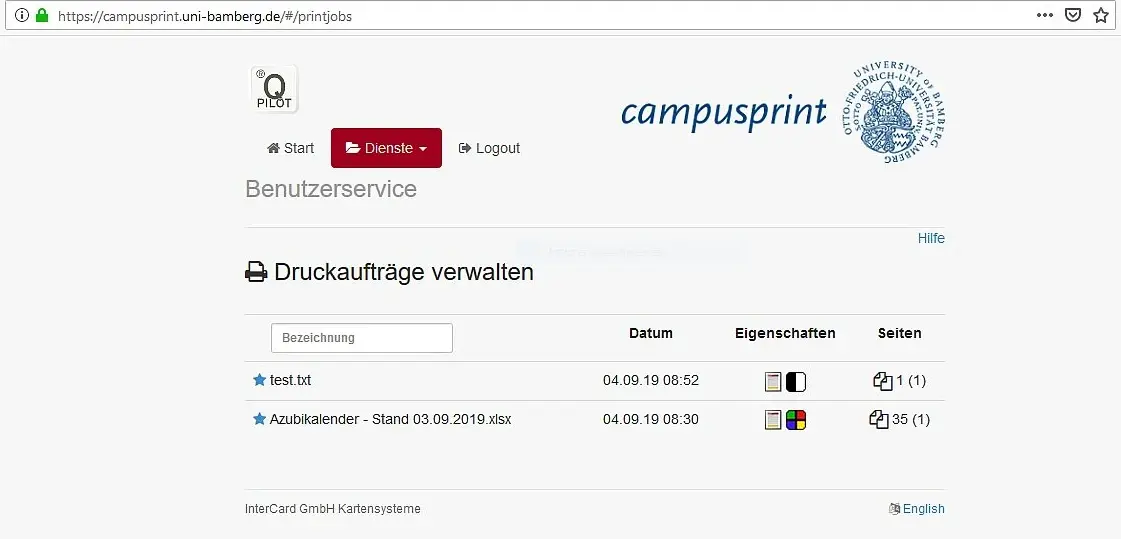
Under the Print Jobs section, you'll find all your current print jobs and can manage them there. If you're looking for a specific print job, you can search for it in the “Name” field. Furthermore, under the Properties section, you can see whether the document will be printed on one side or multiple sides, or whether it will be printed in grayscale (monochrome) or in color. The Pages section indicates how many pages the document to be printed has and how many copies will be printed.
Figure 2 shows the campsuprint “Manage Print Jobs” service. It displays two print jobs that have been created: one in grayscale (black and white) and one in color.
Scans
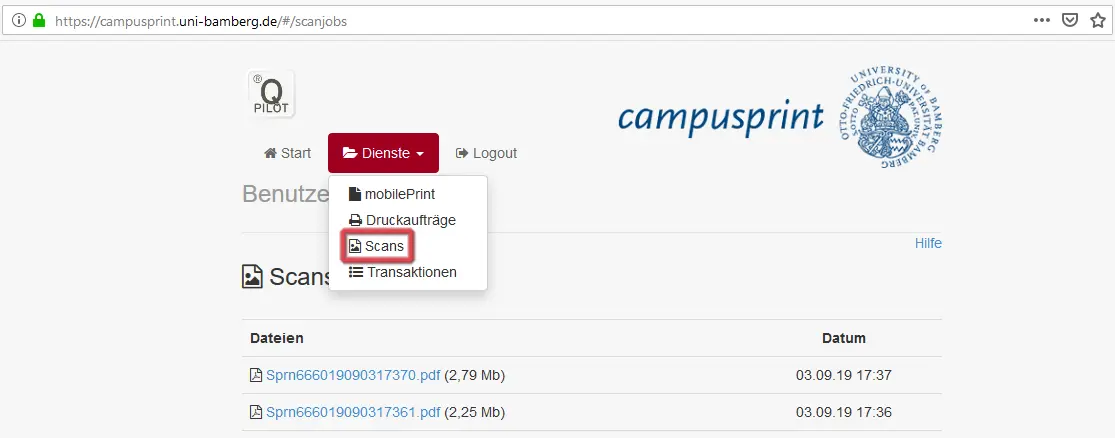
The Scans service allows you to view the documents you have scanned using a University of Bamberg copier, as well as the file size. By clicking on the file name, you can download the document as a PDF file. The date and time of the scan are also displayed on the left-hand side.
Figure 3 shows the campusprint service displaying scans of two documents that were scanned.
Transactions
As the name suggests, the Transactions service allows you to view all your transactions with campusprint, along with their corresponding dates.