Phone System (UCware Solution)
How can the phone system be used?
The phone system can be used via a softphone (UCC Client) or with a phone (Unify OpenStage SIP, Snom D385).
At the University of Bamberg, there are guidelines regarding who receives a softphone (i.e., a virtual phone) and who is eligible to receive a physical phone: Employees working remotely receive a virtual phone; they can make calls using the UCC Client software, regardless of the platform. This is more environmentally friendly because you do not need an additional device—you can make calls using your work computer, both in the office and at your remote workstation. This eliminates the need for call forwarding to personal phones. Employees without a work-from-home agreement generally keep their traditional phone (Unify OpenStage SIP) or, if needed, are provided with a new phone (Snom D385).
The UCC Client
Regardless of whether you are registered for a phone on the new phone system or for the softphone, the UCC Client allows you to easily configure settings for the phone (either the physical phone or the softphone). If you are registered to use the softphone, the UCC Client also allows you to make phone calls.
Assistance with getting started with the new phone system
Tips for Getting Started
- Set a one-time PIN.
- Sign up by phone.
- Change the display language.
- For example, call a team member.
- Log in to the UCC client
- Call a team member by
- enter the Extension in the header.
- click on the team member in the UCC-Client (Prerequisite: The team member must have been registered centrally for the new phone system)
- Drag-and-Drop the team member into the call field.
- Have someone call you to test how to answer a call using the UCC client.
- Try call forwarding without any stress: Call a team member and forward the call to someone else.
- Set a one-time PIN.
- Sign up by phone
- For example, call a team member.
- While on the phone with a team member, try out Additional features (Pause, Call Waiting).
- Try call forwarding without any stress: Call a team member and forward the call to someone else.
User Accounts for Logging In to the UCC Client
Your account on the phone system has been configured with your BA number (baxxxxx): In this case, when you make an internal call from your phone, your first and last name will appear on the display of the person you are calling.
If you have enabled the email notification feature for voicemail or missed calls in the UCC client, the notifications will be sent to your personal email address.
When using a phone number for an organizational unit (such as IT support or a secretariat), a phone number (telxxxxx) is used instead of a BA number. The display shows the abbreviation for your organizational unit, along with any additional information. You use the phone number to log in to the UCC client.
Note: When the notification feature is enabled, notifications are sent to the specified distribution list. Please note that you must add all authorized individuals as members of the distribution list so that incoming messages are forwarded to these members. For more information on this topic, see Distribution Groups.
Frequently Asked Questions
Regarding all phones


Unify or Snom phone
If you make calls exclusively using a Unify or Snom phone—rather than the UCC client—you can upload a custom greeting only through the UCC client. To record your greeting, you must use any audio recording program (e.g., Audacity) and then upload the resulting file under Greetings in the UCC client (Upload Annoucement Instructions in the Manuel). Or you can call yourself from another phone, record your message on the voicemail, download the file in your email program, and then upload it again in the UCC client. Alternatively, you can select the default message when configuring the call forwarding profile (Step 6).
General Procedure:
- Launch the UCC client and log in.
- Click the announcement icon in the left-hand menu bar
- Click the Upload button. Enter a description for the announcement.
- Click Select File. Select the audio file and click Open.
- Finally, click the Upload button.
- Next, set up call forwarding profiles so that you can activate them manually or on a shedule.
UCC-Client
If you make calls using the UCC client, you can also record a custom greeting through the program. Here, too, you can select the default internal greeting when configuring the call forwarding profile.
- Launch the UCC client and log in.
- Click the announcement icon in the left-hand menu bar
- Click the Record with Phone button to start recording.
- Stop recording by clicking Save Recording.
- Add a description to the announcement to make it easier to find.
Tip: If the announcement does not appear under Available Announcements, refresh the list by clicking the arrow icon. - Next, set up call forwarding profiles so you can activate them manually or on a shedule.
Detailed Instructions
cUnify, Snom phone
Call forwarding can be set up directly on the Unify phone. This is not possible on the Snom phone. For the Snom device, call forwarding must be set up via the UCC client.
UCC-Client
Open the UCC client and select the Call Forwarding Profiles option. Here, you can view the call forwarding profiles created centrally by the administrator, as well as add and configure new call forwarding profiles. A distinction is made between internal and external calls. Calls can be forwarded to a phone number, an answering machine, or a pre-recorded message. Detailed instructions can be found in the manueal:
- Basics of Creating Call Forwarding Profiles
- Step by step:
Detailed Instructions
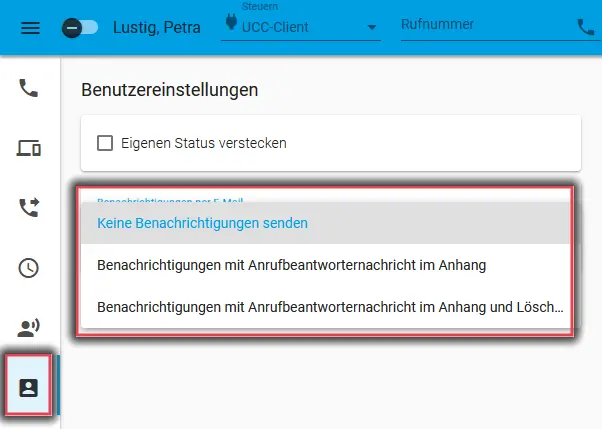
If you would like to be notified by email when a message has been left on your voicemail, you can set this up using the UCC client.
Log in to the UCC client and click the people icon on the left.
In the Email Notifications drop-down list, you can choose from 3 options:
- Do not send notifications (Default setting)
- Notifications with an attached voicemail message
- Notifications with an attached voicemail message and delete...
Finally, click Save.
Attention! If you select the third option, the message left on the voicemail will be deleted after it is sent by email.
Unify Phone
The ringtone cannot be customized here. The Unify phone cannot play ringtones that are set in the UCC client.
UCC Client
Log in to the UCC client, then click the notebook icon here in the left-hand menu bar. Click My Phone Numbers here. Here, you can customize the ringtone for external and internal calls.
Snom phone
The ringtone cannot be changed directly on the phone; instead, it must be adjusted using the UCC client.
With the new phone system, it is no longer possible to make personal calls; in other words, personal phone calls may not, as a general rule, be made using the new phone system. An exception to this rule is dialing the emergency numbers 110 and 112.
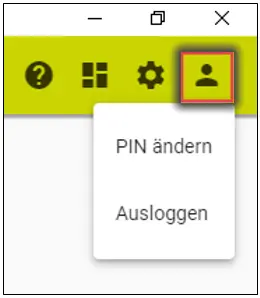
If you are using a Unify or Snom phone, you must first generate a PIN. To do so, log in to the website web.phone.uni-bamberg.de using your BA number or phone ID and the corresponding password. Click the person icon in the upper-right corner, then click Change PIN. Enter the PIN and confirm it by entering it a second time. Then click Submit.
Note: The PIN must be at least 8 digits long and, for security reasons, should not include your date of birth.
To ensure that telework is both environmentally friendly and flexible—and to eliminate the need for constant call forwarding—employees with a telework contract are provided with a virtual phone: They can make calls using the UCC Client software, regardless of the platform. Employees without a telework contract are provided with a physical phone.
The phone system accepts only digits for phone numbers. It is not possible to make a call using a “+” sign.
If you want to make an international call, you must dial a total of three zeros as the prefix; for example, 0 0043 123 456789 for Austria.
Starting with version 6.0, the queue management feature is no longer integrated into the UCC client. It has been replaced by a separate website, which you can access at web.phone.uni-bamberg.de/management/.
... to the Unify phone
On the Unify phone, dial *0 followed by your extension number. Confirm by pressing OK or picking up the receiver. The voice prompt will now ask you to enter your PIN, which you must set first. Then enter your PIN and confirm by pressing the # key. The voice prompt will now confirm your login. Please wait 60 seconds before making a call.
On the Unify phone, dial *0*. Confirm by pressing OK or pick up the receiver.
- Forward calls (with voice prompt support): To do this, press “*2#”.
- To forward calls to a specific number: Press “*2” and then enter the number immediately afterward.
- To forward calls to voicemail: Press “*21”.
- To turn off call forwarding: Press the key combination “*2*”.
To transfer a caller to another person, please follow these steps:
- Answer the call and select “Consultation” on the phone. If this option does not appear on the screen during the call, please press the right arrow key on the phone. Confirm your selection by pressing “OK.”
- Now enter the number you want to forward to, and confirm your entry again by clicking “OK.”
- Transferring a call without consulting the other party: Hang up
- Call Transfer with Confirmation: The call will not be transferred until you hang up.
Tap the envelope icon on your phone. Now select the + Calls option on the screen. Under Missed, you can view your missed calls along with the time and date. Tap the left arrow (back) to return to the menu.
- First, press the “Settings” button on your device
- Select “Users” from the menu
- The first time you access the system, set a user password to change your settings on the phone. This password is separate from your PIN, which is used to log in to your extension on the phone.
- Enter the user password
- Select the “Location” menu, followed by “Language”
- Select your preferred display language and confirm your selection by clicking “Save & Exit.”
- Quick Start Guide(858.2 KB, 7 pages) (German only)
... to the softphone (UCC client)
Open the UCC Client and click the Authenticate with Weblogin button. The Shibboleth login screen will now appear. Enter your BA number and the corresponding password here.
Open the UCC-Client and click the person icon. Click the Log Out button.
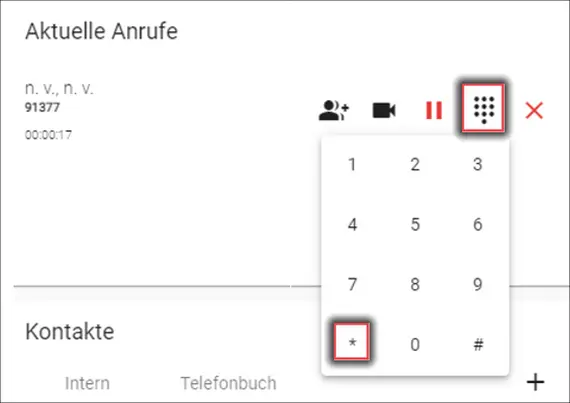
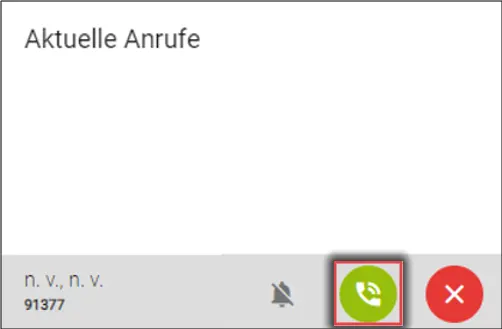
To set up an automatic callback if the person you're calling is already on the phone or does not want to be disturbed, please follow these steps:
Wait for the automated voice prompt, and then, in the UCC client, first press the number pad and then the star key to initiate an automated call. The call will then end automatically.
5–10 seconds after the person you called becomes available again, you will receive a call through the phone system. Then click the green phone icon to call that person.
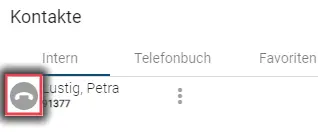
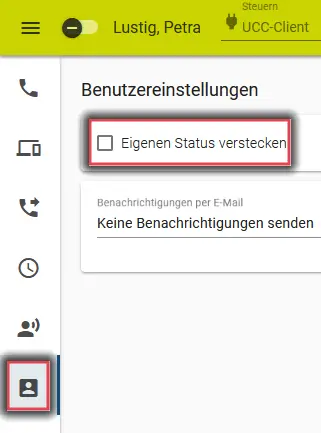
Your own status is not displayed by default. Other people using the UCC client will then see only a gray phone icon next to your name in their contacts list.
To allow others to see your current status—for example, during a conversation—uncheck the box under User Settings -> Hide My Status, and then click Save. You can find these options in the left-hand menu under the People icon.
For a detailed explanation of which symbol represents which status, see the manual.
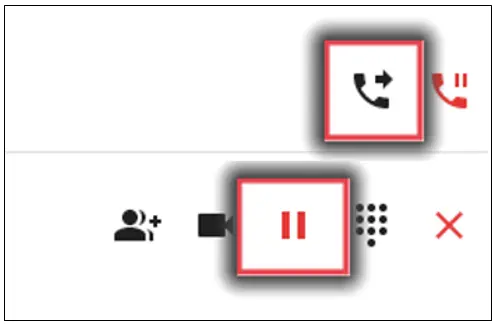
To transfer a caller to another person, please follow these steps:
- Click the pause icon to put the call on hold.
- Enter the number of the person you want to forward the call to, and then click the phone icon to the right of it.
- To transfer a call, wait until the person answers the phone, and then click the call transfer icon.
- Without consulting anyone, click the “Connect Call” icon to connect the call.
First, click the phone icon in the left-hand menu bar, and then click the magnifying glass under Contacts. Enter the name of the person you're looking for.
Note: Names containing umlauts cannot currently be found. A support ticket has already been opened with the manufacturer regarding this issue.
The phone book can only be edited in the UCC Client.
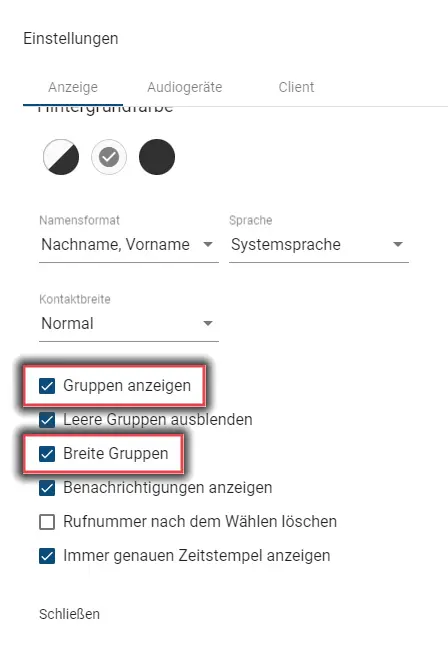
In the default view, the departments are listed alphabetically and can be browsed from left to right.
To sort contacts alphabetically, click the gear icon (Settings) in the upper-right corner of the UCC Client and uncheck the box next to Show Groups.
To display the departments in a clearer layout, click the gear icon (Settings) in the upper-right corner of the UCC client and check the box next to Wide Groups.
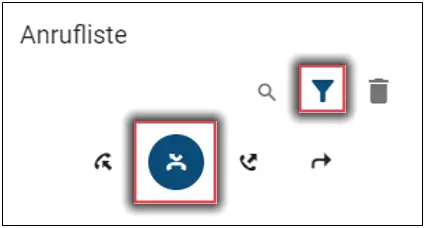
Click the phone icon in the upper-left corner. In the call log, you can view all incoming and outgoing calls. Click the filter icon in the call log and uncheck the boxes for Answered, Dialed, and Forwarded. Then click the filter icon again. You will now see all your missed calls.
... about the Snom D385 phone (Snom phone)
A Snom D385 phone is provided only in exceptional cases.
If your workstation is equipped with a Snom D385 phone, consult the user manual to learn how the device works. We'll walk you through the most important steps below:

On the Snom phone, press the third button from the left in the top row (directly below the display) to log in. Then enter your extension number and confirm it by pressing the check mark buttons. Next, enter your PIN and confirm it again by pressing the check mark button. When setting up the new phone for the first time, you must first set a PIN.
On your Snom phone, press the third button from the left on the top row (directly below the display) to log out.
To set up an automatic callback when the person you're calling is already on another call or does not wish to be disturbed, please follow these steps:
Wait for the automated voice message to finish, then press the star key on the phone's keypad. The call will then end automatically.
As soon as the automatic callback begins, your phone will ring. Pick up the receiver, and the call will be connected.
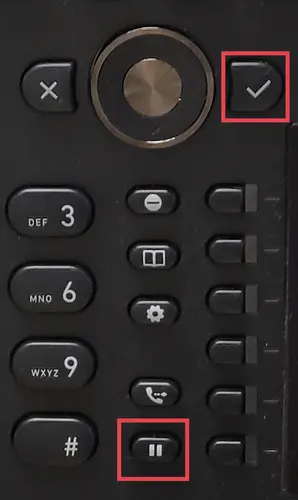
- Forwarding with consultation
- Hold a Call (Pause Button)
- Enter a new number and confirm by clicking the “check mark”
- If the person being called answers and wants to take the call, hang up the receiver
- Forwarding without consultation
- Press the earpiece button (the second button from the bottom, next to the number 9)
- Select a number and confirm with the “check mark”
- Hang up
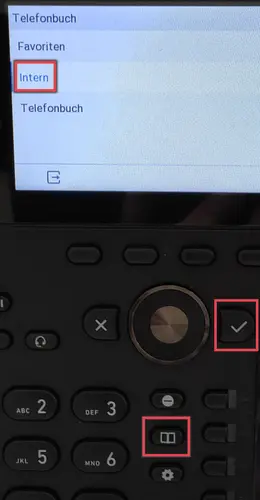
Tap the phonebook button (center, book icon). Use the arrow keys to select Internal, and then tap the confirmation button to the right of the arrow keys.
To search for a specific person, press the number keys that contain the desired letters. Usually, the first 3 letters of the name are sufficient.
Example: For “Maier,” the numbers would be 62437.
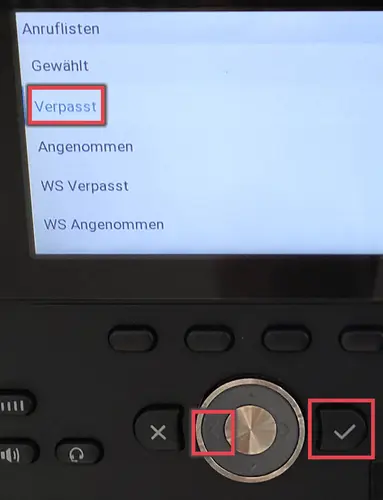
Tap the left arrow button in the upper-middle area, use the arrow buttons to select Missed, and then tap the button with the checkmark icon to the right of the arrow buttons to confirm your selection. You will now see a list of your missed calls, along with the time and date. Tap the X button to the left of the arrow buttons to return to the menu.