File server for research, teaching, and administration
Personal storage space on the file server
By default, every employee has 50 GB of storage space available on the IT Service file server under their personal BA number.
Storage space can be expanded upon justified request by sending an informal request via email.
Only the owner of the network drive has access. This means you will then have access to your personal folders and files,
- if you have logged in to your computer using your personal user number (BA number) and the corresponding password, or,
- when you log in with your personal user ID and the corresponding password at the login prompt while establishing a connection to the network drive.
Task-Based Storage Space on the File Server
If several people need to access a shared storage location on the file server to perform their work tasks, a task-specific network drive (file server) is set up for this purpose.
Request for a Task-Specific File Server
The director of a facility arranges for the creation of a task-specific storage space via the IAM-Portal.
The regulations described under Task-Based Data Services apply.
Delete the task-specific file server
To delete a task-specific network drive—for example, because the organizational unit no longer exists or the project has ended—all that is required is an informal email to IT Support from the person responsible for the drive letter in question.
Access Permissions for Task-Based File Servers
The permission to work with a task-specific network drive is granted to the relevant group of users through membership in the corresponding security group. The members of these security groups can be managed by appropriately authorized employees of the institution via the IAM portal.
If a person wants to access such storage space, they must log in to the file server using their user account; the system then determines whether or not they are authorized to access the data in question.
File Servers for Various Purposes
You can have a task-based file server set up for your entire team, for specific projects, or for specific tasks within your organizational unit (for example, for the administrative office).
In addition, your institution may also have a task-specific file server designed specifically for storing files to be published on the Internet. This file server is also integrated into Typo3 and is usually named \\uni-bamberg.de\team\www.handle.
Task-Based File Server Shares on Computers at the University of Bamberg
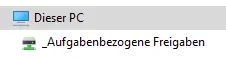
On computers running Windows 10 that are centrally managed by the IT department, all task-related network drives (shares on the file server) for which you have access rights are automatically listed in the navigation pane of Windows Explorer under “This PC / _Task-Related Shares.”
By right-clicking on a share, you can select “Map task-specific network drive” from the corresponding menu option. If you have any questions about this, please contact IT Support.
Storage Space for Teaching on the File Server
If, for teaching purposes, students—in addition to staff members—are to be granted access to shared storage space on the file server, a corresponding folder with the necessary permissions can be set up for this purpose. Such a file server can be used, for example, to make files available in the computer labs.
Requesting a File Server for Teaching
Employees can request a file server for teaching purposes by emailing IT Support. Please note: Requests are not submitted through the IAM portal.
Access Permissions for Fileservers Used for Teaching
Access permissions are managed in the same way as on task-based file servers (see above).