Questions About Data Protection and the Confidentiality of Your Print and Scan Jobs
When using campusprint, print and scan jobs are temporarily stored on the campusprint server. They are assigned to the user account that sent the print job or scanned a document.
- Printing: A person must use the smart card associated with the user account to retrieve the print job from the copier used for printing (personal user account or cost center card user account).
- Scanning: Before scanning, a chip card must be inserted into the card terminal. The scanned files are assigned to the chip card's user account.
Print and scan jobs can therefore only (and exclusively!) be processed using a combination of a user account and the associated smart card.
Nevertheless, in practice, questions arise regarding the confidentiality of print jobs and retrieved documents, which are addressed below.
The campusprint server is located—both logically and physically—within the data protection area of the University of Bamberg’s IT Service. Only system administrators and IT Service operators have access to this server. The campusprint server and its operation are subject to the University of Bamberg’s data protection regulations and usage policies, just like the mail server and the file server.
Pickup print jobs remain stored on the campusprint server for an additional 5 days and can be “reactivated” independently via campusprint.uni-bamberg.de during this period.
Scanned files are also stored on the campusprint server for 5 days.
Scan and print jobs will be permanently deleted after this period, regardless of whether they have already been saved or printed.
If a print job is interrupted on the copier due to a malfunction (paper jam, empty paper tray, unusable print data, etc.), we recommend deleting the job at the card terminal.
To do this, press the F2 key on the terminal. This will stop the current print job and delete it from the copier.
This ensures that the job is completely removed from the system and that no “remaining pages” are printed. If the printer no longer lists any print jobs (the button with your username is no longer displayed, and the job list is empty), then the system has already deleted the print job automatically. In this case as well, it is ensured that no remaining pages will be printed (since the automatic deletion process only occurs on certain devices and under certain operating conditions, we recommend deleting the job manually as described above).
As soon as the print job is deleted, campusprint determines the number of pages already printed, calculates the printing costs incurred, calculates the cost of the chip card, and fully completes the print job.
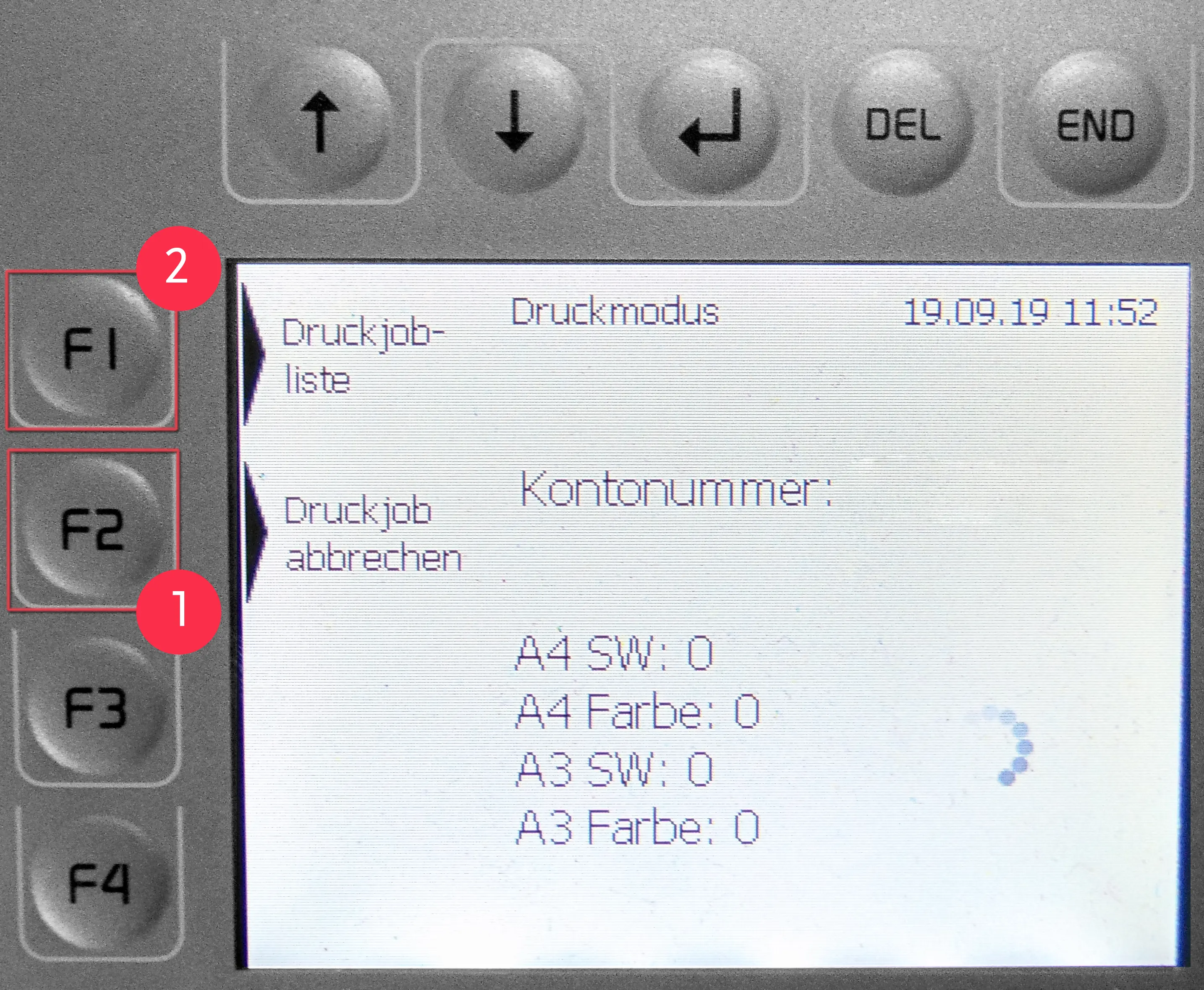
To cancel a print job while it is printing, press the F2 key (1) on the terminal. This stops the current print job. Then press the F1 key (2) to return to the print job selection menu.
In Figure 1, the two buttons for canceling the print job and the print list are highlighted.
This procedure ensures that your print job is deleted. If you end the print job at the terminal by removing your card, there is no guarantee that the print job will be completely deleted.
If the printing process is interrupted for technical reasons (e.g., out of paper), it is recommended that you cancel the remaining print job as described above. The pages that could not be printed must be resubmitted as a print job and printed again.