Automatic Reply or Out-of-Office Message Using the Outlook Web App
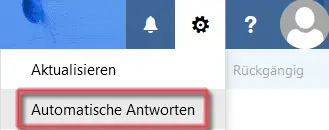
Figure 1: Automatic Reply Settings
To set up an automatic reply or out-of-office message in the Outlook Web App, log in as usual at mailex.uni-bamberg.de.
Next, click the gear icon (top right, to the left of the default profile picture) and select Automatic Replies.
Figure 1 illustrates the process described above for setting up automatic replies.
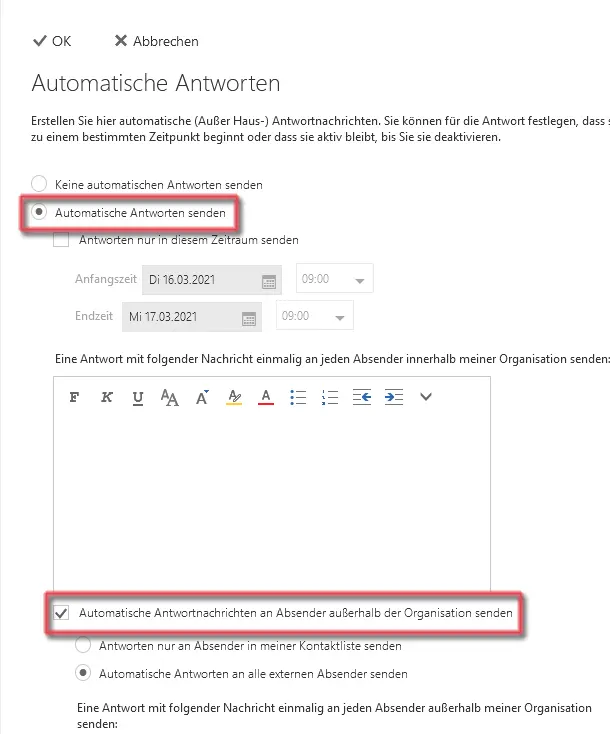
Figure 2: Create an Automatic Reply (OWA)
In the overview that appears next, please select the Send Automatic Replies option.
If you'd like, you can also set a time period of your choice for your automatic reply.
Figure 2 illustrates the content described above.
Note:
Please note that you must set up the note twice. Once for senders with a University of Bamberg email account (here: senders within my organization) and once for senders who are not employed by the university (including students), i.e., outside my organization.