Set up a student e-mail account in Outlook under Windows (M365 e-mail system)
Important note:
To be able to integrate an e-mail account, you must have a valid user account (BA number + corresponding password).
Adding the e-mail account
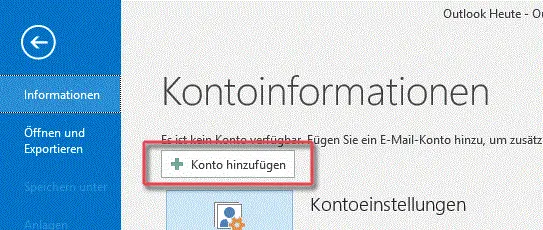
Figure 1: Adding a new e-mail account
When you run Outlook for the first time, the configuration wizard starts automatically.
If you want to add another account in Outlook, click on File and on Add account, as shown in Figure 1.
Setting up the e-mail account
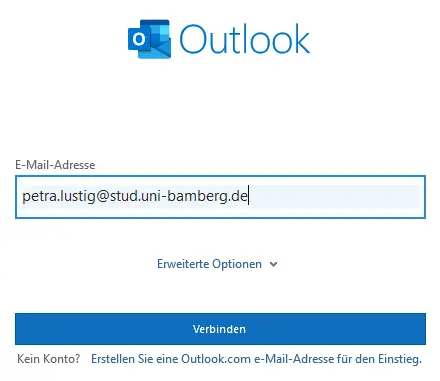
Figure 2: Add mailbox
Enter your student e-mail address in the new dialog box and click on Connect.
Figure 2 shows the input mask with an example e-mail address.
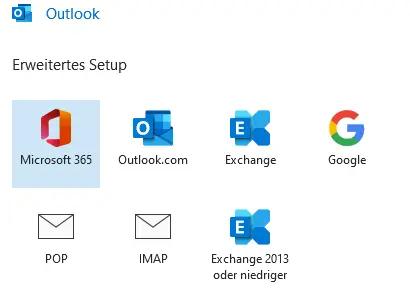
Figure 3: Select Microsoft 365
Please select the Microsoft 365 button in the following overview.
Figure 3 shows the selection window in which Microsoft 365 is already selected.
Figure 4: Login window for Office 365
You will be asked for your login details in the following window. Enter your BA number or e-mail address and the corresponding password and confirm with Login.
Figure 4 shows the Shibboleth login window.
Note:
In the next window that may appear, uncheck Set up Outlook Mobile for my phone too and complete the account setup by clicking OK.