Setting Up a Student Email Account on iOS (M365 Email System)
Important Notes:
To set up an email account, you must have a valid user account (BA number + corresponding password)
These instructions apply to setup on iOS 14 or later. Please note that the interface may differ in other versions.
Adding an Email Account
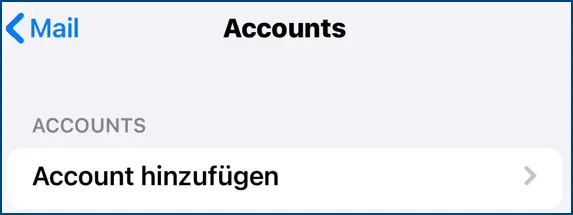
Figure 1: Add Account
Go to Mail > Accounts via Settings.
Then tap Add Account.
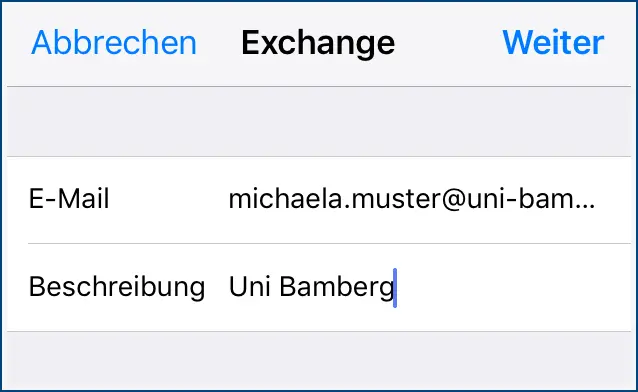
Figure 2: Add Mailbox
After you tap Add Account, select Microsoft Exchange as the account type. You will then be asked for your login credentials. Fill out the first window as follows:
Email: Your university email address
Description: Any, for example, the University of Bamberg
To continue, tap Next, and when the notification About Microsoft on your “uni-bamberg.de” Exchange account appears, tap Sign In, then Continue.
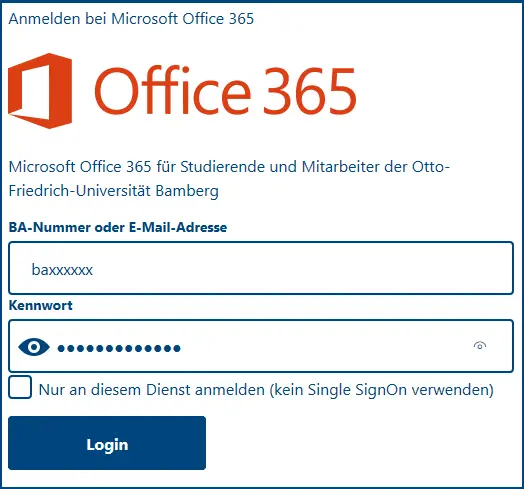
Figure 3: Logging In via Shibboleth
Please enter your personal BA number in the BA Number or Email Address field and the password for your BA number in the Password field. Next, tap Login. Now accept the permissions requested by iOS.
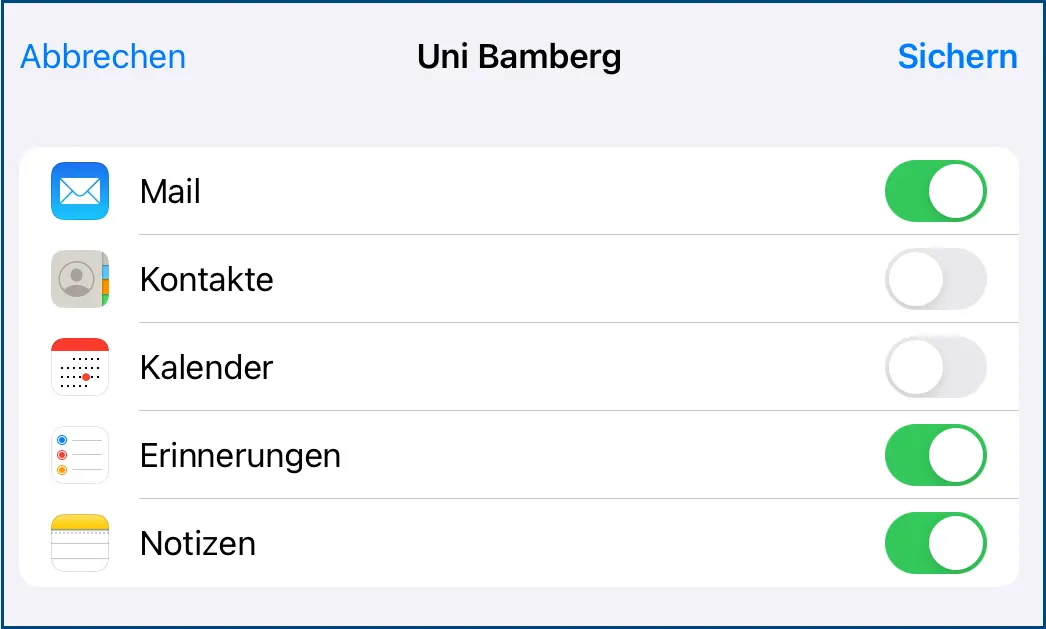
Figure 4: Disable Desired Services
Finally, you will be asked which services you would like to use with the email account you just set up. To disable an unwanted service, simply slide the corresponding slider to the left. Click the Save button to save your email account; you'll then find it in the Mail app.