Set up a student e-mail account in Outlook under macOS (M365 e-mail system)
Important note:
To be able to integrate an e-mail account, you must have a valid user account (BA number + corresponding password).
Adding an e-mail account
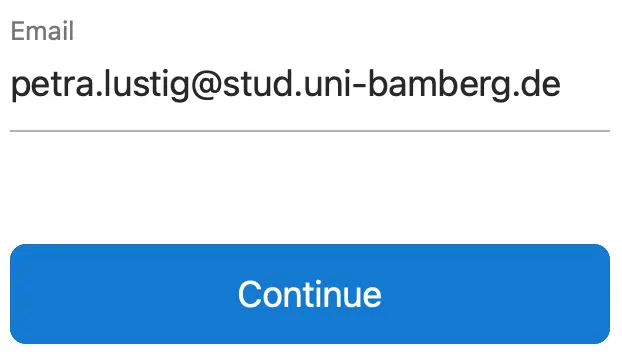
Figure 1: Enter e-mail address
Start Outlook and then open the sub-item Accounts... via the Tools menu.
Click on the +-Symbol and select New Account...
Enter your university e-mail address in the window that appears, as shown in Figure 1. Click on Next to open a new window.
Setting up the e-mail account
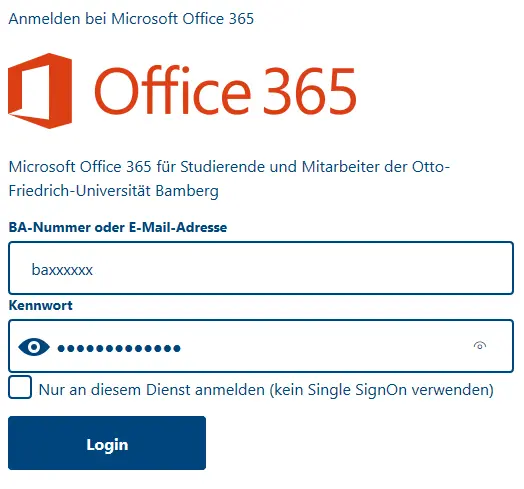
Figure 2: Shibboleth login window
If you have clicked on Continue as described above, you will be redirected to the university's registration page. Please enter your BA number and the corresponding password. Click on Login. After a moment, the account is set up and you can close the setup dialog by clicking on Done.
Figure 2 shows the Shibboelth login window with your user name and password filled in.