Import a user certificate into Evolution
Important Note:
- This guide describes how to import a certificate into the Evolution email client starting with Ubuntu version 18.04. This process has been tested up to Ubuntu version 20.04.
In Evolution, go to Edit, select Preferences, and under the Certificates section, click the Your Certificates tab.
In the new window that opens, click B ImportB . Select the p12 certificate file you saved earlier and enter the password you chose previously.
Now you need to confirm the import by clicking OK. After that, exit the settings and select the email account to which you want to add the signature from the navigation menu. Right-click on it to open the context menu, and select Properties.
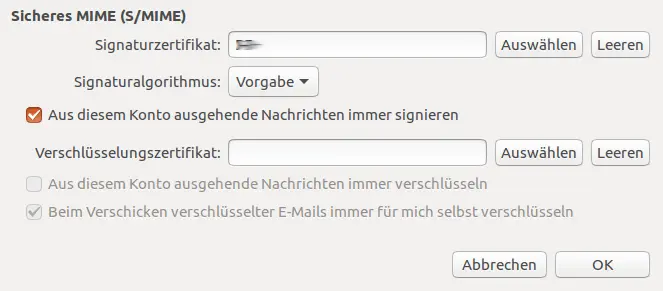
Figure 1 shows the context menu for certificate settings.
Under the Security section, you can now select the signature certificate you just imported. Finally, check the box next to Always sign messages sent from this account (alternatively, you can select this option each time you send an email by clicking the signature icon) and confirm your settings by clicking OK.
Do you have any questions?