Document Signatures on Devices Not Managed Centrally
Document Signatures on Devices Not Managed Centrally
To ensure that document signatures created with certificates obtained from the IT department appear as trusted in Adobe Acrobat Reader DC and Adobe Acrobat Pro DC even on devices that are not centrally managed, you must first configure a few settings. These devices include, for example, all personal computers, Linux systems, and Mac systems.
Configuring Root Certificates
The following instructions apply equally to Adobe Acrobat Reader DC and Adobe Acrobat Pro DC on Windows and Mac OS. The settings must be configured separately for each program.
Download the certificate exchange file
Please download the file CertExchangeRootUniBamberg.fdf(10.7 KB) to your computer. It contains all the certificates needed to verify document signatures created using certificates provided by the IT Service.
Opening the Settings
Please launch the program and open its settings. On Windows, you can find them under the menu item Edit > Preferences…, and on macOS, under the menu item Acrobat > Preferences….
Updating Trust Services
Figure 1: Trust Services Settings
Next, select the Trust Services category from the list on the left.
Now click the Update Now button next to the Adobe Approved Trust List (AATL). It may take up to a minute for the confirmation window to appear. Please wait for it to appear and do not click on anything else until then. Once it opens, close it by clicking OK.
If Update Now is not clickable, you must first check the box next to Load trusted certificates from an Adobe AATL server.
Repeat this step to update the European Union Trusted Lists (EUTL) as well.
Figure 1 shows the successful completion of the process described above, with the individual fields highlighted.
Disabling AATL Updates
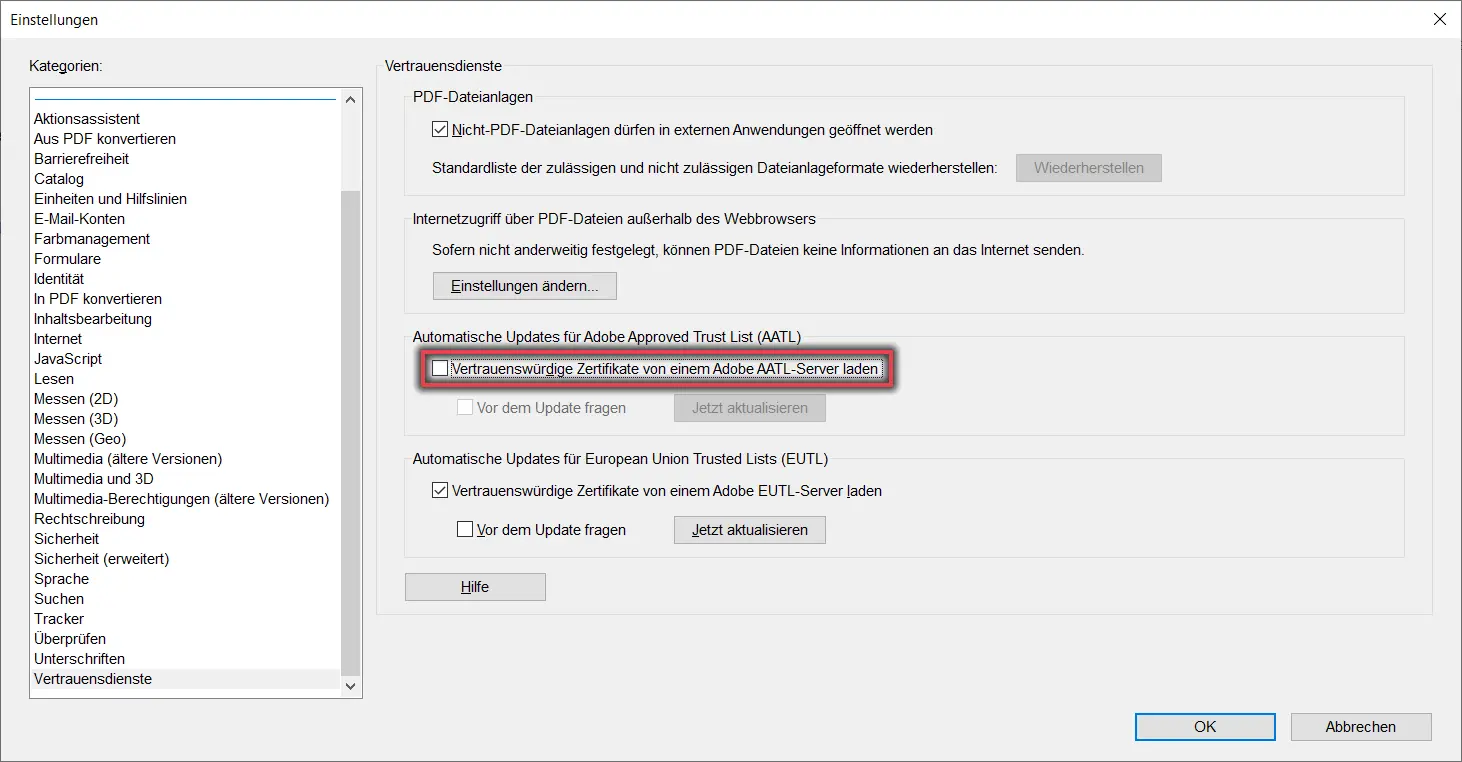
Figure 2: Trust Services Settings—Load Adobe AATL Server
Now uncheck the box next to Load trusted certificates from an AATL server. Please leave the box next to EUTL checked.
Figure 2 shows the trust services with a checkmark next to “Load trusted certificates from an AATL server.”
Importing Root Certificates
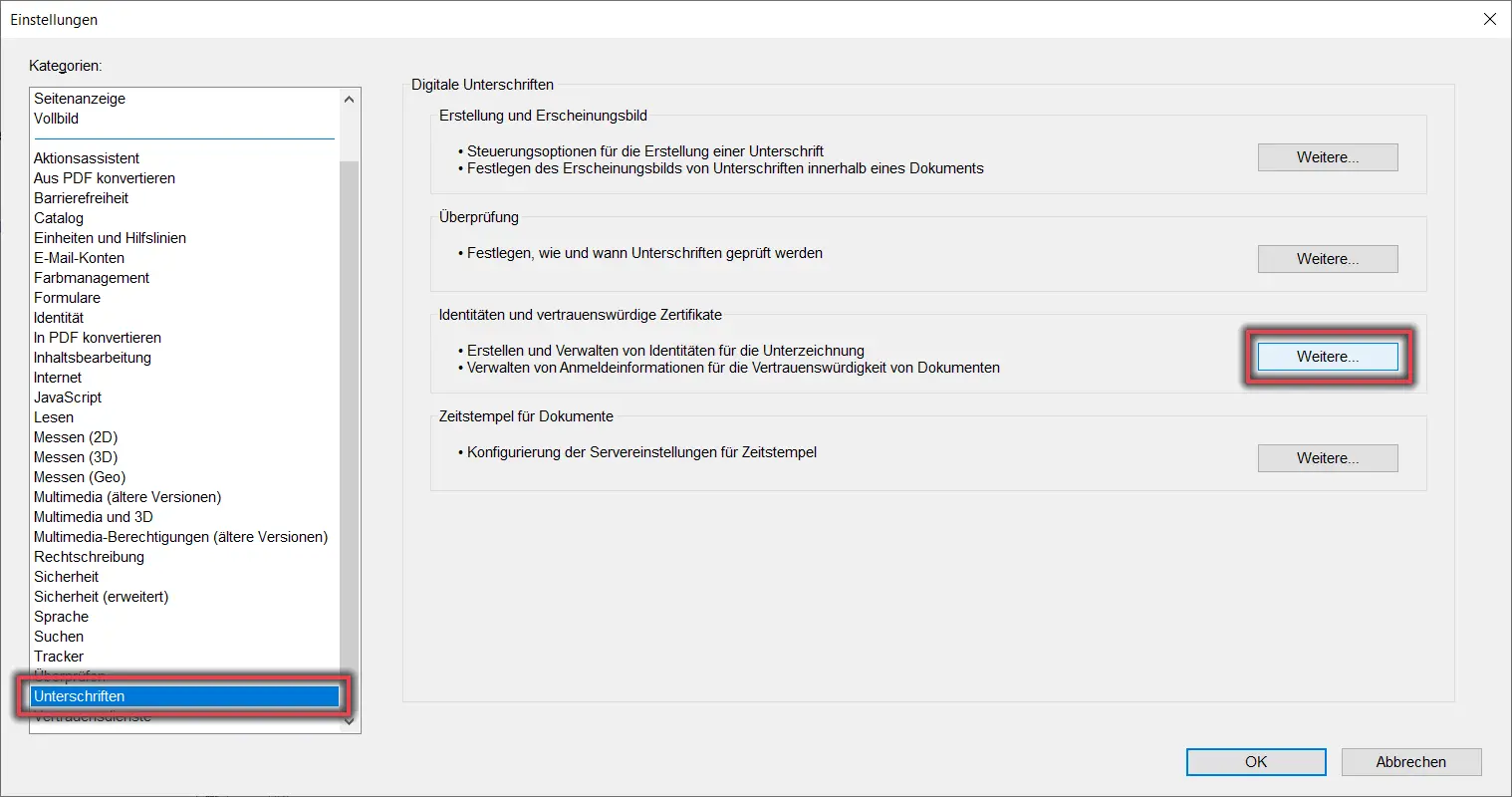
Figure 3: Settings for Importing Root Certificates
Now go to the Signatures category in the list on the left and click More... under Identities and Trusted Certificates.
Figure 3 shows the “Signatures” menu item with a checkmark next to “More...” in the “Identities and Trusted Certificates” section.
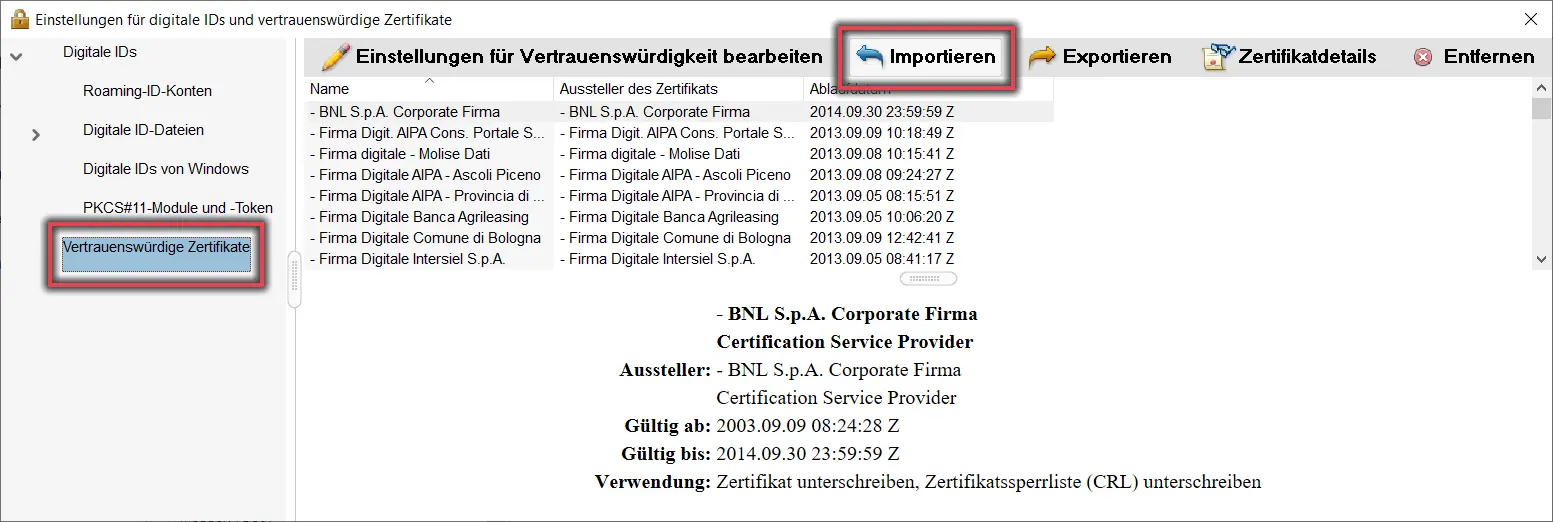
Figure 4: Settings for digital IDs and trusted certificates
In the window that opens, click Trusted Certificates on the left. Then click the Import button with the blue arrow pointing to the left.
Figure 4 shows the settings for digital IDs and trusted certificates, with the labels “Trusted Certificates” and “Import.”
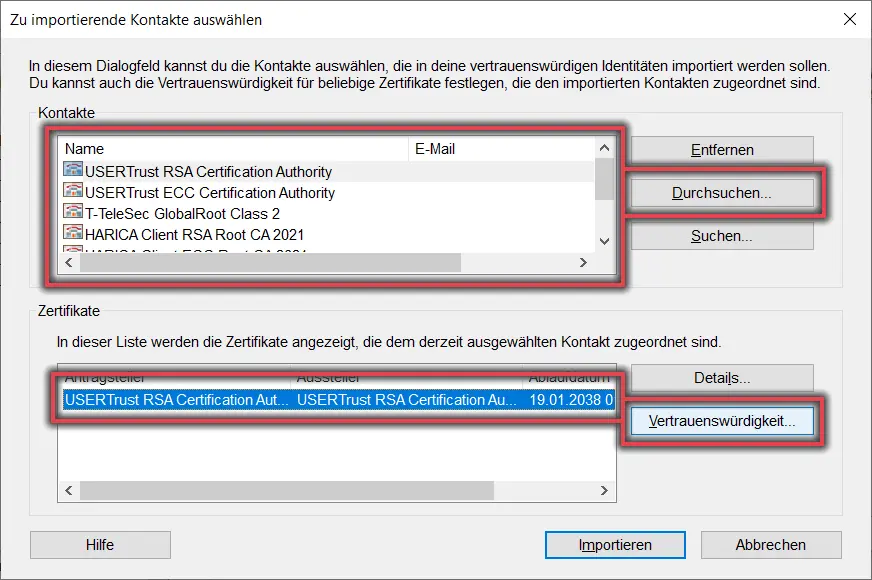
Figure 5: Selecting Contacts to Import
In the window that opens, click Browse..., select the previously downloaded file CertExchangeRootUniBamberg.fdf, and click Open to confirm.
Next, select the certificate from the top list (Contacts), and then select the entry with the same name that appears in the bottom list (Certificates). Now click Trust....
Figure 5 illustrates the process described earlier using multiple markings.
Figure 6: Import Contact Settings
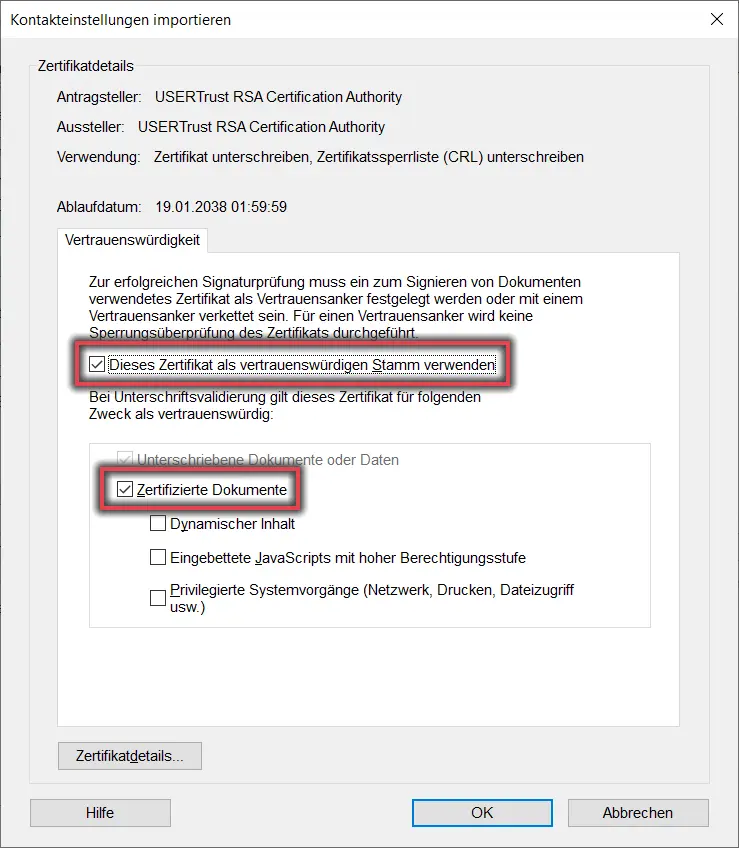
In the new window, check the boxes next to Use this certificate as a trusted root and Certified documents. Confirm the settings by clicking OK.
Figure 6 illustrates the process described above.
Now repeat the process with the remaining certificates (select them and edit their trust settings).
Finally, click Import. Shortly thereafter, an information window will open; click OK to confirm. This completes the step.
Removing Certificate Policies
Figure 7: Settings for Digital IDs and Trusted Certificates
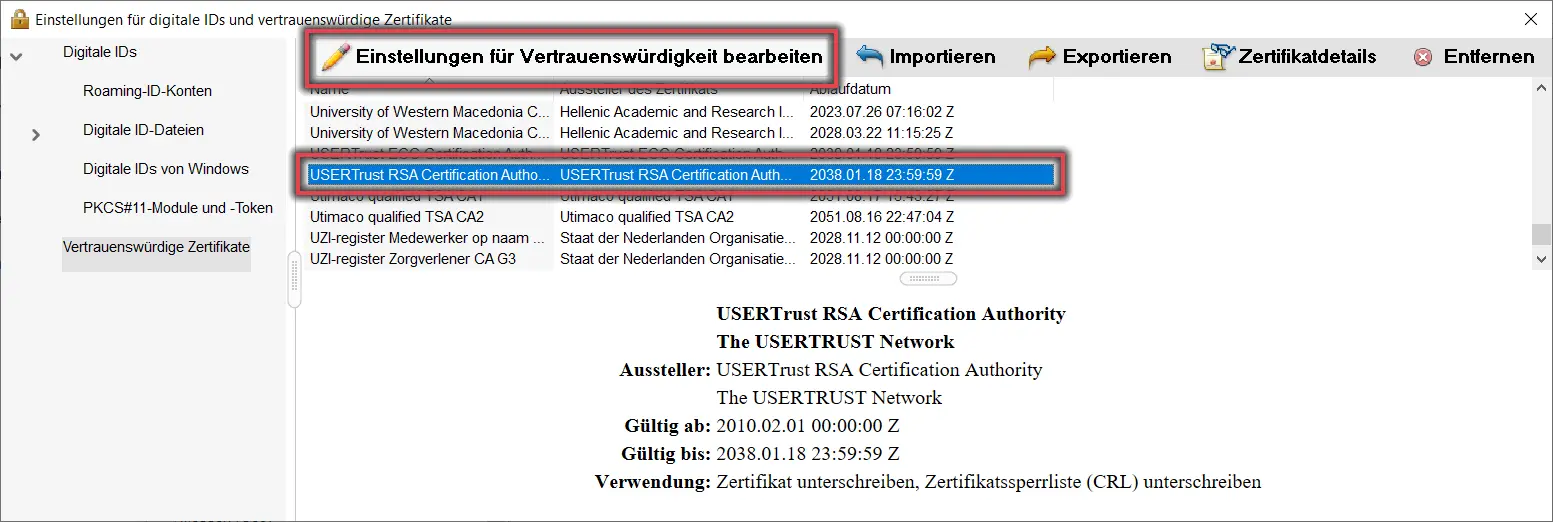
Now locate the root certificate named USERTrust RSA Certification Authority in the list of trusted certificates. Select it and click the Edit Trust Settings button with the pencil icon.
Figure 7 shows the settings for digital IDs and trusted certificates, with annotations highlighting the process described earlier.
Figure 8: Edit Certificate Permissions
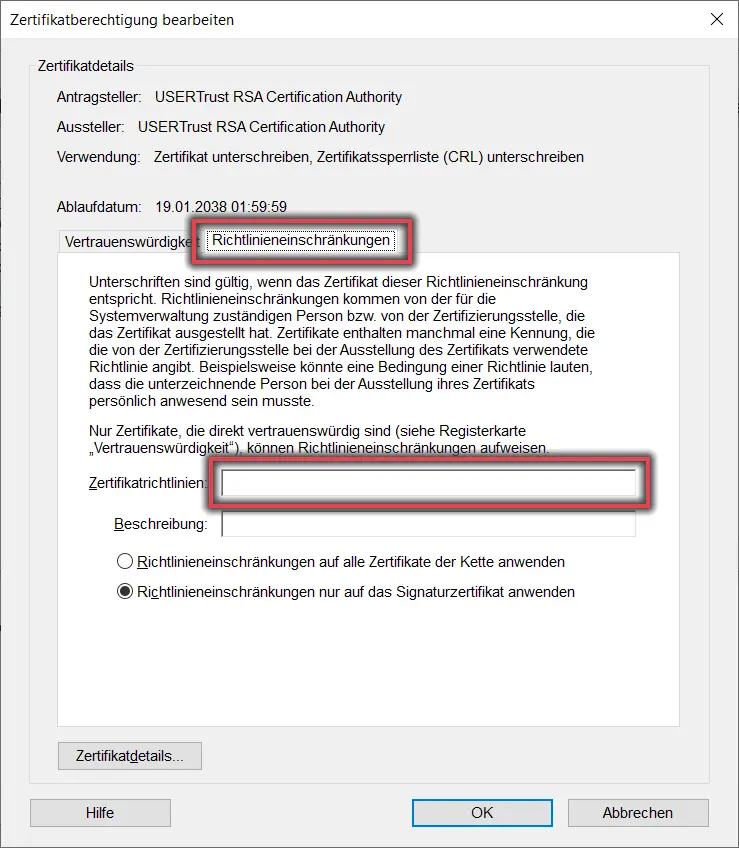
In the new window, click the Policy Settings tab, and then clear the Certificate Policies text box by deleting the existing content. Finally, click OK to close the window.
Close the window containing the list of trusted certificates (the “X” in the upper-right corner of the window on Windows, or the “Close” button in the lower-right corner on Mac OS).
Figure 8 illustrates the process described above once again.
Verifying the Signature Timestamp
Figure 9: Verification Settings
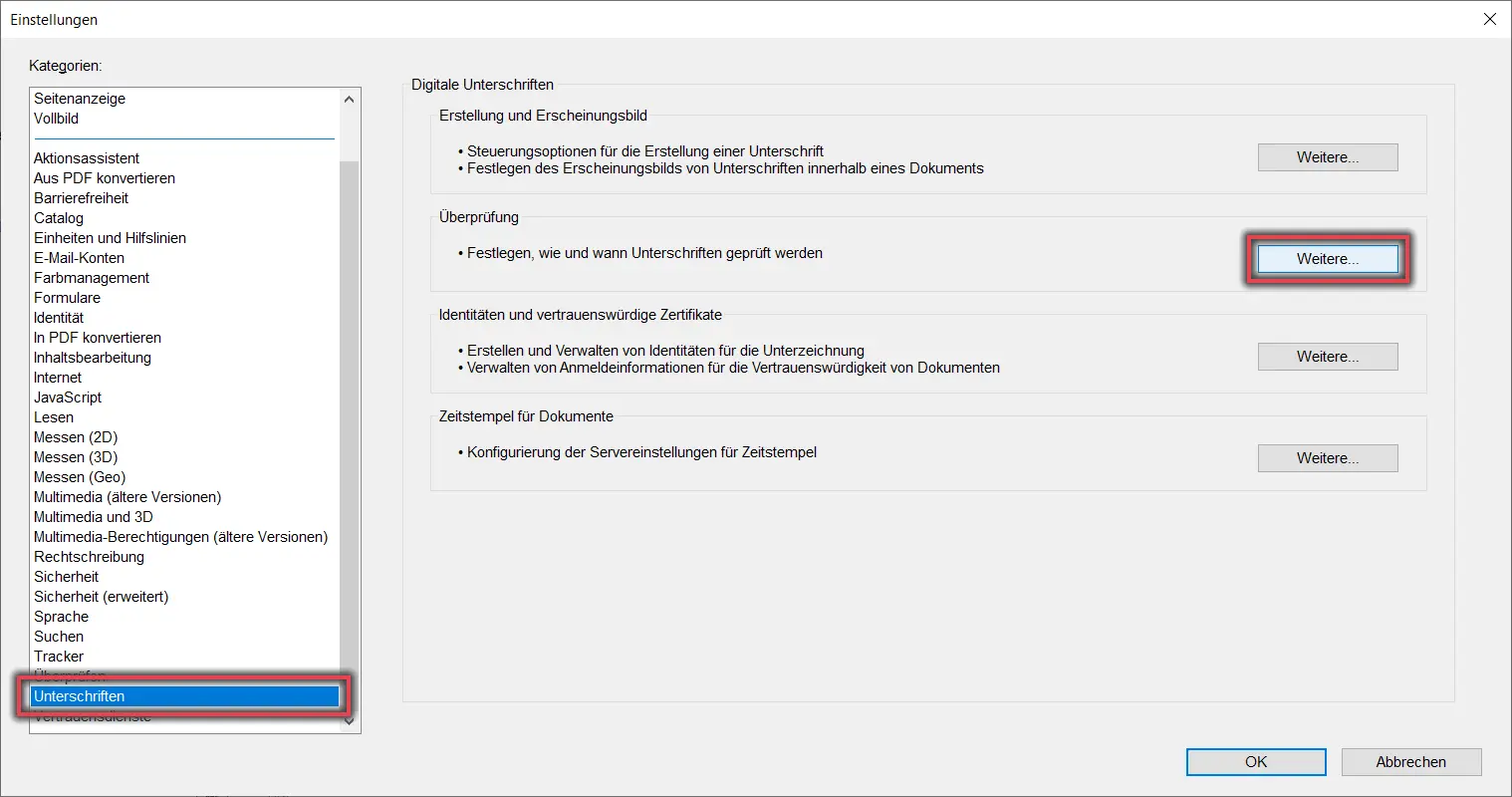
Now click on Signatures in the category, and then click More… under Verification.
Figure 9 shows the “Signatures” menu item with a check mark next to “More...” in the “Verification” section.
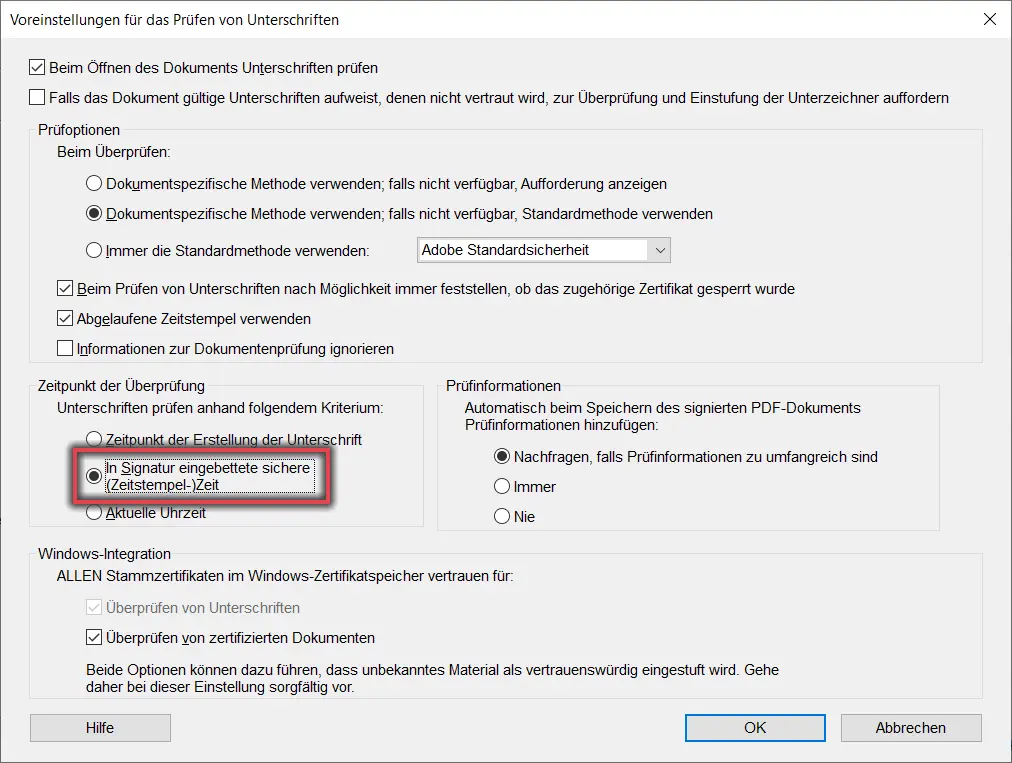
Figure 10: Default Settings for Verifying Signatures
Now select the option Secure (timestamp) time embedded in signature under Time of verification. Confirm the setting by clicking OK.
Now confirm the changes by clicking OK in the Settings window. This completes the setup process.
Figure 10 illustrates the process described above.
If you continue to experience problems when verifying digital PDF signatures, you can also import the certificates from the CertExchangeIntermediateUniBamberg.fdf(8.0 KB) file. Please reset the settings to use it as a trusted root certificate and for certified documents. You can confirm any warnings regarding a trust anchor by clicking OK. Policy restrictions do not need to be adjusted this time.