The personal certificate can be used both to digitally sign documents and to send emails.
Apply for and Create a Certificate
First, log in to the PKI-Portal using your BA number and the corresponding password.
Note:
Each time you log in, the service provider's information must be transferred; please click Transfer Information here.
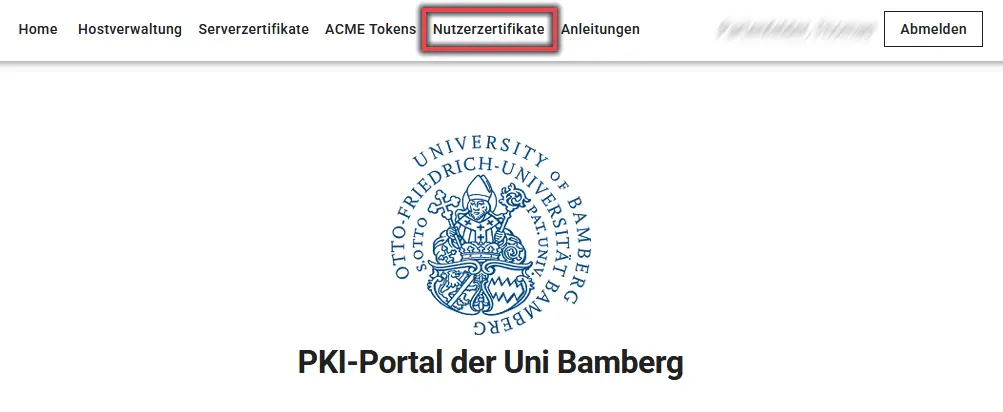
After successfully logging in, click the User Certificates tab in the top menu bar.
Figure 1 shows the menu described above with “User Certificates” highlighted.
Figure 1: PKI-Portal Menu: User Certificates
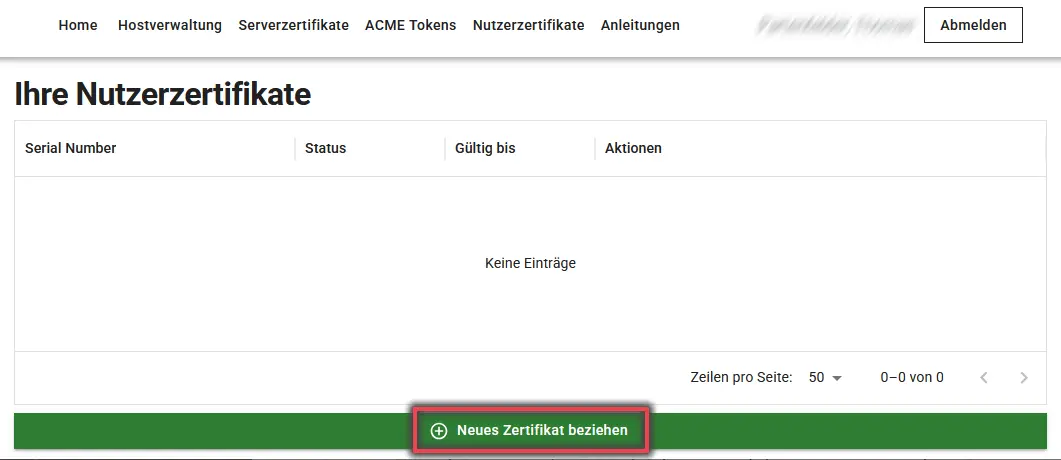
In the Your User Certificates section, click Get a New Certificate at the bottom of the page.
Figure 2 shows the menu described above, with the “Obtain a New Certificate” option highlighted.
Figure 2: Request a User Certificate
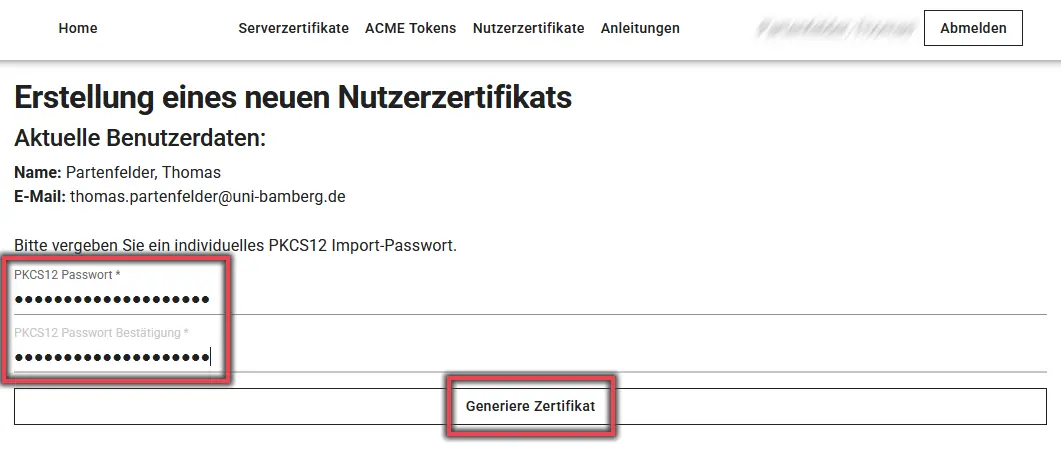
A new window will open. Your current user information will be displayed here.
Set a secure password for the certificate and then click Generate Certificate. A window will appear stating that it may take up to 5 minutes to generate the certificate. The download will start automatically. If the download does not start or is interrupted, you can restart it from the window that is still open; otherwise, close the window. The process is now complete.
Figure 3 shows the menu for creating a new user certificate using the current user data, with prompts for entering the password and a button for generating the certificate.