Only for devices that are not centrally managed by IT Services
If you want to use your certificate on a device that is not managed by IT Services, you must configure additional settings in the program.
To do so, please follow the instructions below and then continue the setup here.
Set Up a User Certificate
Launch Adobe Acrobat Reader or Adobe Acrobat Pro. Click Menu in the upper-left corner, and then click Preferences. In the left column, select the Signatures category. You may need to scroll down to find it. In the Identities and Trusted Certificates section, click More…
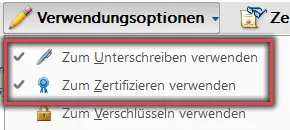
Figure 1: Usage Options
Now, under Digital IDs, select the certificate you imported earlier. You can identify the certificate by its name format First Name Last Name <Email Address>, the storage method Windows Certificate Store, and the expiration date.
Next, as shown in Figure 1, select the options Use for signing and Use for certifying under “Usage Options.” You can now close the windows.
You can customize the appearance of your signature in the Settings under the Signatures category, in the Creation and Appearance section, by clicking the More… button. In the window that opens, go to Appearances to make your selections. For example, you can use an image of your handwritten signature.
Configure the timestamp service
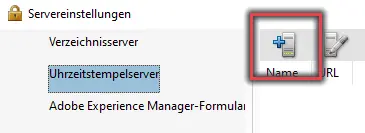
Figure 2: Add a timestamp service
In the Settings, stay in the Signatures category. In the Document Timestamps section, click More…, and in the window that opens, click the icon with a plus sign highlighted in Figure 2.
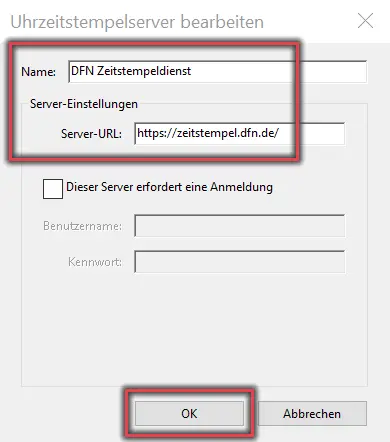
Figure 3: Timestamp Service Configuration
Now, under Name, enter a name of your choice, such as DFN Timestamp Service. For the Server URL, enter https://zeitstempel.dfn.de/ as shown in Figure 3, and click OK.
Now select the correct time stamp server from the list, click the Set as Default button, and confirm the prompt by clicking OK. You can now close the windows.
Restart Adobe Acrobat
After you have imported your certificate and configured all settings, close Adobe Acrobat and reopen it to ensure that all trust settings are properly applied. This completes the setup.
Digitally Sign a PDF Document
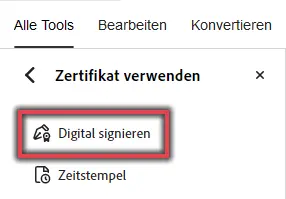
Figure 4: Digital Signing
In Adobe Acrobat, click AllTools in the top bar, then click Use a Certificate (you may need to click Show More to make this option visible).
Then, as shown in Figure 4, click Digital Sign at the top and use the left mouse button to drag a rectangle to the location where you want the signature to appear.
In the window that appears, select the desired certificate and then click Next. Now enter your password for the user certificate at the bottom of the window and click Sign in the lower-right corner. The document is now digitally signed.
Tip:
To check whether the signature was successful, hover your mouse over the signature in the document. The message Valid signature should appear. Double-click the signature to view more details about it.