Once the certificate has been successfully downloaded, double-click it. The Certificate Import Wizard will open.
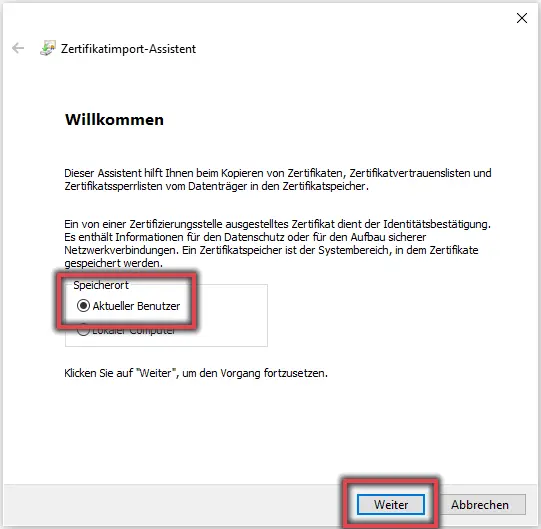
Select Current User here (if it is not already selected) and click Next.
In the next window, you must select the file to be imported. The certificate file is already selected; click Next again.
Figure 1 shows the Certificate Import Wizard with the “Current User” option highlighted and the “Next” button.
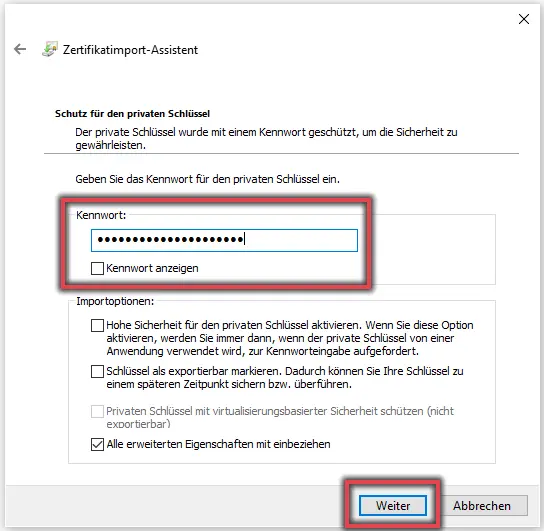
Figure 2: Protection for the private key
In the next window, you must enter the password you specified when applying for the certificate. Under Import Options, only Include all advanced properties should be selected. Click Next again.
Figure 2 shows the section for setting the password.
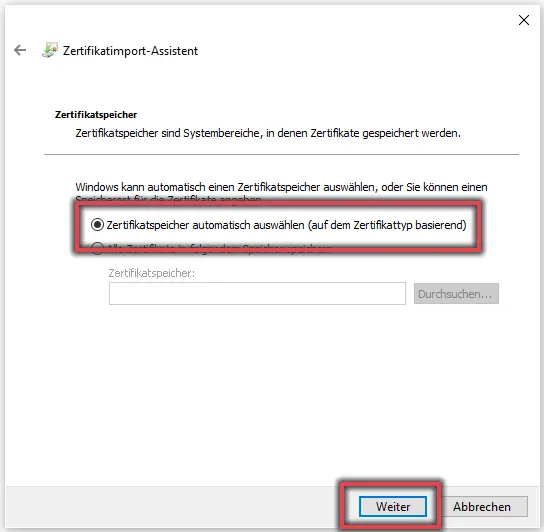
Figure 3: Certificate Store
The next step is to select the certificate store. The option Select certificate store automatically (based on the certificate) should already be selected here.
If not, please select an option and click Next.
Finally, click Finish.
Figure 3 shows the selected option Automatically select certificate store (based on the certificate).
[Translate to English:] Abbildung 4: Sicherheitswarnung
Although the root certificate is actually installed, Windows displays a warning about it on certain systems when the user certificate is imported for the first time. As shown in Figure 4, you can safely confirm this by clicking Yes.
The SHA1 fingerprint of the root certificate is 46C6900A 773AB6BC F465ADAC FCE3F707 006EDE6E. You can also verify the fingerprint directly with the HARICA Certification Authority.
This warning may or may not appear. If no warning was displayed, Windows had already saved the root certificate as trusted, which is the expected behavior.
For group certificates, please note that the certificate file must be imported and installed by each person who uses the task-specific email account—in addition to any existing personal user certificate.
![[Translate to English:] Ansicht Sicherheitswarnung](/fileadmin/_processed_/7/c/csm_Zertifikat-Sicherheitswarnung_29d1d72fd1.webp "[Translate to English:] Sicherheitswarnung")