For group certificates, please note that the certificate file must be imported and installed by each person who uses the task-specific email account—in addition to any existing personal user certificate.
Activate the Certificate in Outlook
If you had Outlook open while importing the certificate, close Outlook and restart it.
In Outlook, click File in the upper-left corner, and then click Options in the lower-left corner.
In the new window, click the bottom tab, Trust Center, and then click Trust Center Settings below it.
Another window will open; click the Email Security tab here.
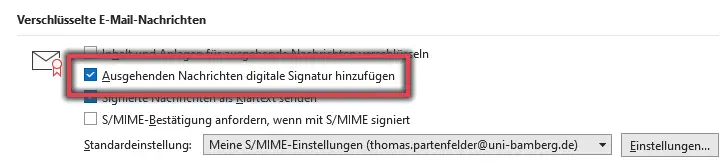
In the Encrypted Email Messages section, you must check the box next to Add a digital signature to outgoing messages.
Figure 4 shows the Add a digital signature to outgoing messages option selected.
Figure 4: Encrypted Email Message Options
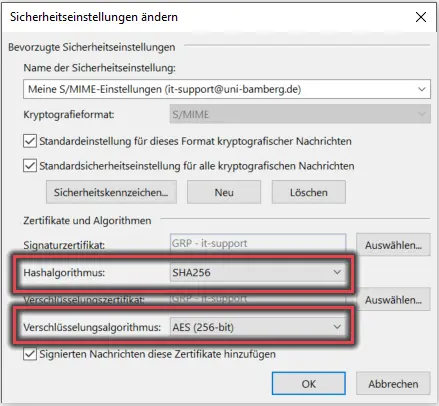
Figure 5: Security Settings for Certificates
To ensure that other email clients, such as Thunderbird, also accept the certificates, the encryption must be adjusted.
To do this, click Settings. A new window will open where you can adjust the settings as follows:
Hash algorithm: SHA256
Encryption algorithm: AES (256-bit)
Finally, click OK to confirm.
Figure 5 shows the security settings with the adjusted values.
Note!
If you have multiple certificates (personal and/or task-specific mailboxes), you must adjust these settings separately for each certificate.