To access the file server using a network drive, you need a valid user account (BA number + password).
In addition, your device must be connected to the data network of the University of Bamberg, for example directly via the university WLAN or using a VPN connection. Information on VPN at the University of Bamberg can be found at www.uni-bamberg.de/its/vpn.
On computers with the standard installation installed centrally by the IT service, personal and task-related network drives are already available after logging in.
Connect network drive
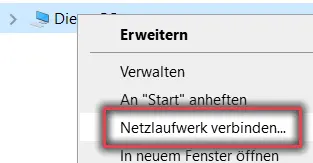
Figure 1: Connect network drive
Open Windows Explorer with the key combination Windows key + E or double-click on the This PC icon on the desktop. Then right-click on This PC and select Connect network drive... .
Figure 1 shows the process described above with a tick next to Connect network drive.
Enter file server address
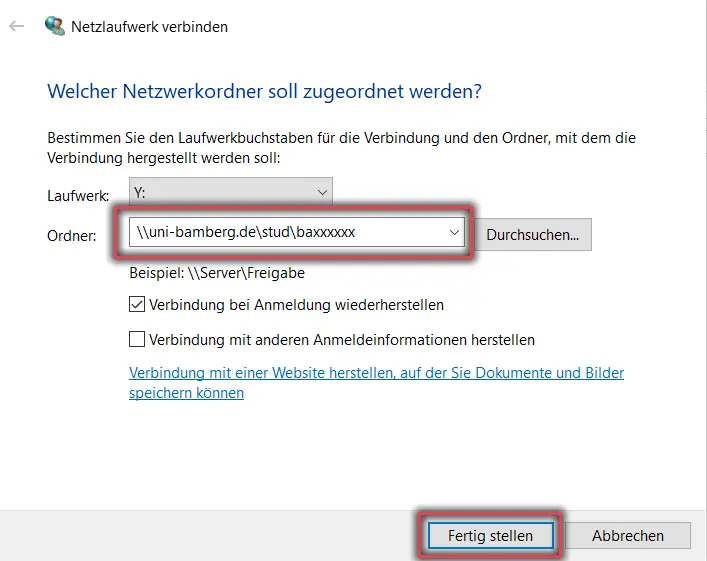
In the dialogue window that then appears, select a free drive of your choice from the drop-down menu.
Then enter the path to the desired network drive under Folder:
To ensure that the connection is maintained even after restarting your computer, tick Restore connection on login.
Figure 2 shows the procedure described above with an example of a student network drive.
Figure 2: Connect network drive dialogue window
No university computer? - Then other login information!
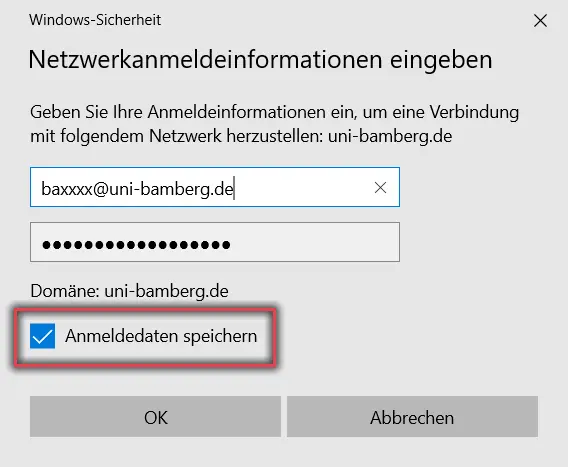
Figure 3: Entering network login information
Tick the Connect to other credentials box if your Windows user profile does not consist of a BA number and associated password, for example on private computers. After clicking Finish, you will be asked to enter your network credentials:
Enter BA-Nummer@uni-bamberg.de and the associated password. If you wish, you can save the login details. Then click OK.
Figure 3 shows the login window with an example of how to enter the login name and password.
Finish connecting the network drive
If all the details have been entered correctly, a window for the drive set up will open automatically and the drive will appear under This PC.
Note:
If you integrate the task-related network drive \\uni-bamberg.de\team, all your task-related network drives are automatically integrated into it.
Disconnect from the network drive
If you want to disconnect a network drive, open Windows Explorer again. Right-click on the drive to be disconnected and select Disconnect from the context menu.