Sign in to Zoom and use it directly in your browser
Important information:
To use Zoom, you must have a University of Bamberg user account.
Participation in a Zoom meeting may be restricted to members of the University of Bamberg. If this is the case, participants must first log in to Zoom using their respective user account details.
Sign up to Zoom
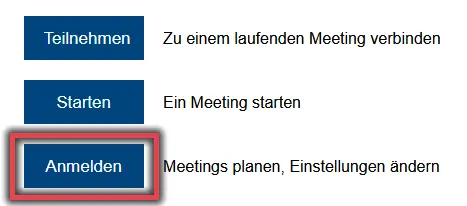
Figure 1: Logging in to Zoom in your browser
Go to https://uni-bamberg.zoom.us and log in by clicking the ‘Log in’ button and then entering your BA number and the corresponding password.
Figure 1 shows the options available on the Zoom homepage, with the ‘Sign in’ button highlighted.
You can then schedule and start meetings. You must also log in if you wish to join meetings that are restricted to members of the University of Bamberg only.
Scheduling, starting and changing Zoom meetings
Schedule a meeting
Figure 2: Scheduling a new meeting
Once you have logged in at https://uni-bamberg.zoom.us, you can schedule new meetings via the ‘Meetings’ tab.
Figure 2 shows the ‘Meetings’ tab and the ‘Schedule a meeting’ button.
On the next page, enter the name of the meeting, set the duration and select any further options. Save the new meeting.
A quick tip:
For a meeting that you wish to use on several occasions, you can select ‘Recurring meeting’.
Publish meeting details
For each meeting, you will be given an automatically generated meeting ID and a password (access code). You can change the password, but not the ID. In the web version of Zoom, you will also be shown a web link for the meeting. Other people can join your meeting using either the web link and password, or the meeting ID and password.
By selecting Copy invitation to clipboard or Copy invitation, you will receive all the details relevant to attending the meeting, which you can send to participants or publish elsewhere (e.g. in the VC course).
Start meeting
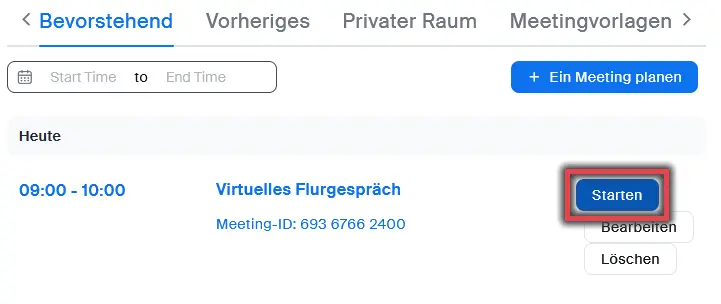
Figure 3: Starting a meeting you have created
Under Meetings, you will find current, future (upcoming) and, for a limited time, past meetings. You can start any of these meetings by clicking the Start button.
Figure 3 shows a scheduled meeting with a marker indicating when the meeting is due to start.
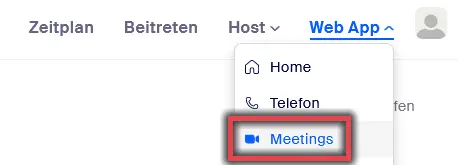
Figure 4: Zoom Web App Meetings
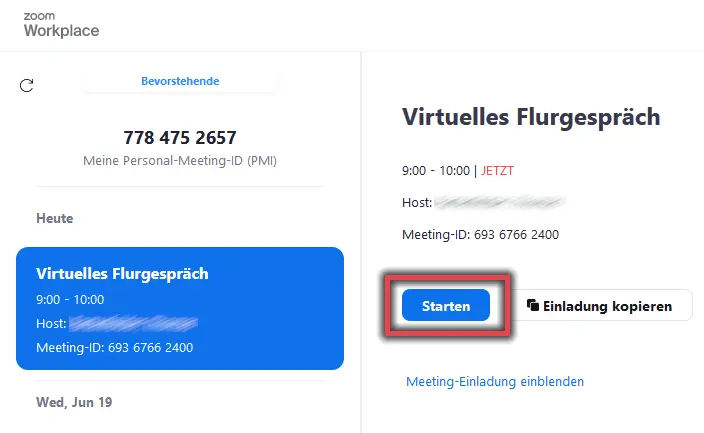
Figure 5: Start a new meeting
Alternatively, meetings can also be started via the Zoom web app. To do this, click on Web App in the top-right-hand corner and then select Meetings from the menu that appears.
Figure 4 shows the web app with a marker next to the meetings.
Here you can see all the meetings planned for the near future and start them directly from here.
Figure 5 shows a meeting that has been scheduled for the present time.
Change meeting details
Once you have opened the meeting in your browser, you can change the meeting settings by clicking on the meeting name.
To do this, click on Edit. You can now adjust the settings and then click on Save.
Join Zoom meetings
Figure 6: Link to join a meeting
Open the page https://uni-bamberg.zoom.us in your browser. Click on the Join button and enter the meeting ID you received from the meeting organiser. Alternatively, you can go to the web address for the meeting that was provided to you. After entering the meeting ID, a dialogue box may prompt you to enter a meeting access code. This is essentially the meeting password that was provided to you by the person who organised the meeting.
Participation in a meeting may be restricted to people who are logged into Zoom or who are members of the University of Bamberg. If this is the case, you will be prompted by an error message, as shown in Figure 6, to log in. Click on the rather vague link Log in to in your browser, or on the Log in to join button in the desktop app.