To link an email account, you must have a valid user account (BA number).
To set up a task-specific email account, you must already have been granted the necessary access permissions (for example, by the management of your organizational unit), which means you must be a member of the relevant security group.
These instructions apply to Android version 13.0 and later; we cannot provide support for earlier versions of Android. The setup process and screenshots for other Android versions may therefore differ from the procedure described here. If you are unsure about the setup, please make only the settings listed below and leave other options as they are set by default on your system.
For privacy reasons, we cannot recommend the Outlook app for mobile devices.
Adding an email account
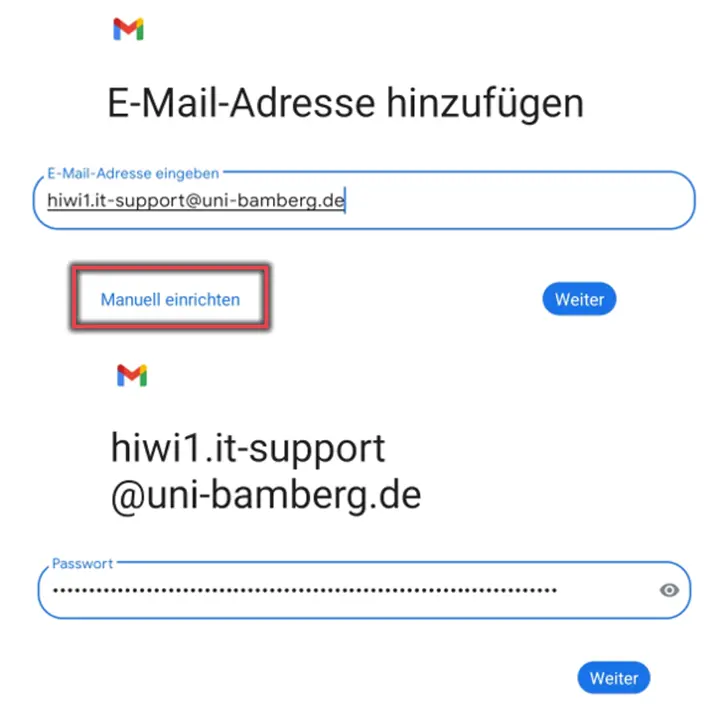
Figure 1: Entering your email address and password
After adding a new account in the Mail app, first enter your work email address and tap Set Up Manually. Select Other and tap IMAP. Next, enter the Mail app password from the IAM portal and tap Next.
Figure 1 illustrates the process described above.
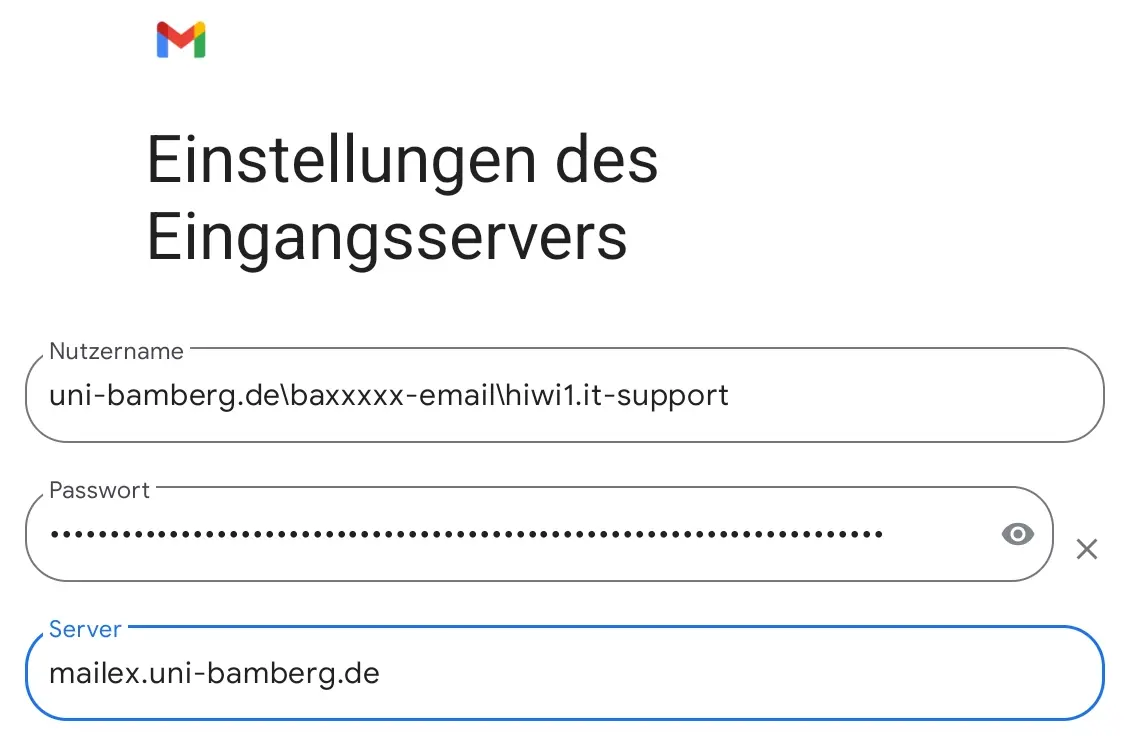
Figure 2: Incoming Mail Server Configuration
Tap Next, and on the next page, select IMAP as the account type. On the following page, please enter the following information for the incoming mail server.