Set up a work-related email account in Outlook on Windows
Important note:
To link an email account, you must have a valid user account (BA number).
To set up a task-specific email account, you must already have been granted the necessary access permissions (for example, by the management of your organizational unit), which means you must be a member of the relevant security group.
Adding an email account
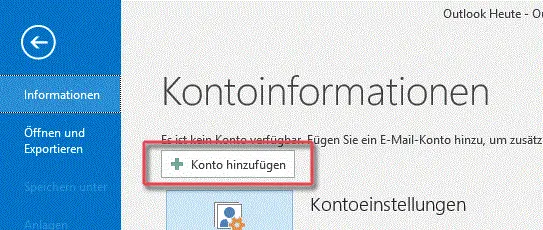
Figure 1: Add a new email account
When you run Outlook for the first time, the Setup Wizard starts automatically.
If you want to add another account in Outlook, click File and then Add Account, as shown in Figure 1.
Setting up your email account
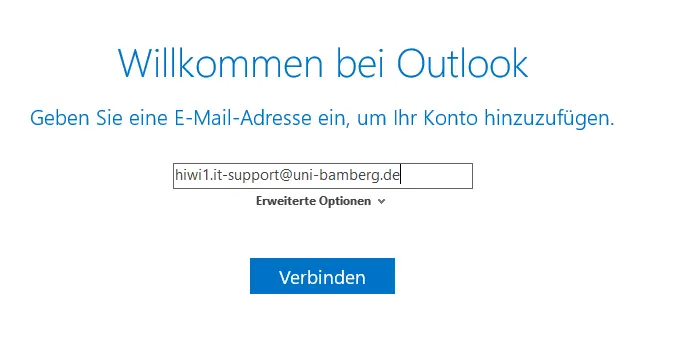
Figure 2: Add Mailbox
In the new dialog box, enter the task-specific email address and click Connect.
Figure 2 shows the input form with a sample email address.
After clicking Connect, select Exchange in the Select Account Type window that appears.
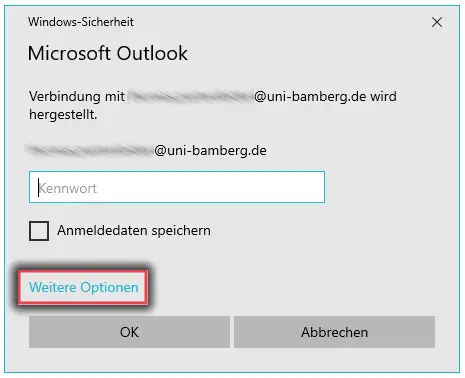
Figure 3: Windows Security: Additional Options
You will now be asked for your login credentials. First, click on Advanced options and select Use a different account.
Figure 3 shows the Windows Security window with the Advanced options checkbox selected.
Abbildung 3 zeigt das Windows-Sicherheitsfenster mit einer Makierung der Weiteren Optionen.
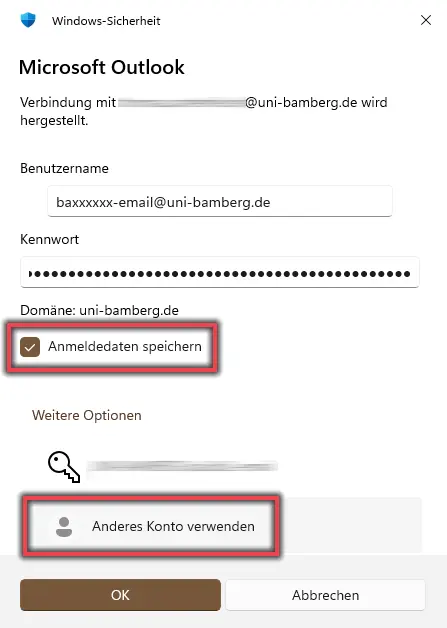
Figure 4: Enter login details
First select Use another account and then enter your login information as follows:
User name: baxxxxxxx-email@uni-bamberg.de (your personal BA number)
Password: The password from the IAM-Portal under Email App Password
and check the box Save login data.
Figure 4 shows the login window with the user name and password filled in and the boxes Save login data and Use another account checked.