To set up an email account, you must have a valid user account (BA-Number).
To set up a task-specific email account, you must already have been granted the necessary access permissions (for example, by the management of your organizational unit), which means you must be a member of the relevant security group.
Adding an email account
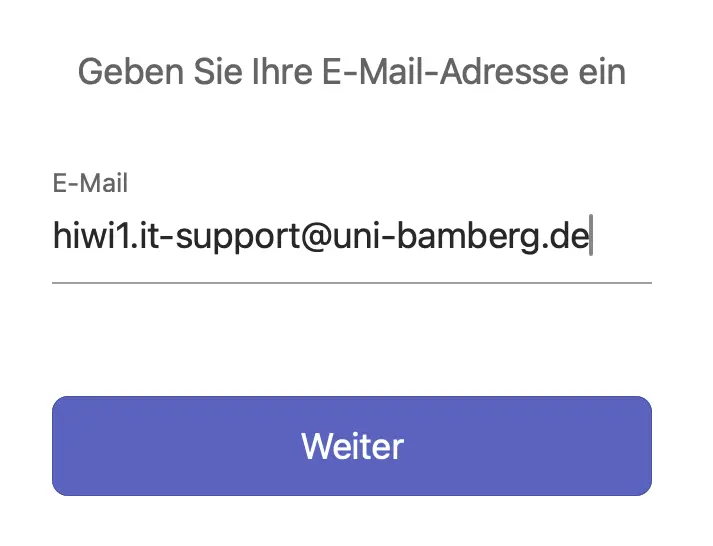
Figure 1: Enter your email address
Launch Outlook, then open the Accounts… submenu from the Tools menu…
Click the + icon in the bottom-left corner and select Add Account
As shown in Figure 1, enter your university email address in the window that appears. After clicking Next, a new window will open.
Setting up an email account
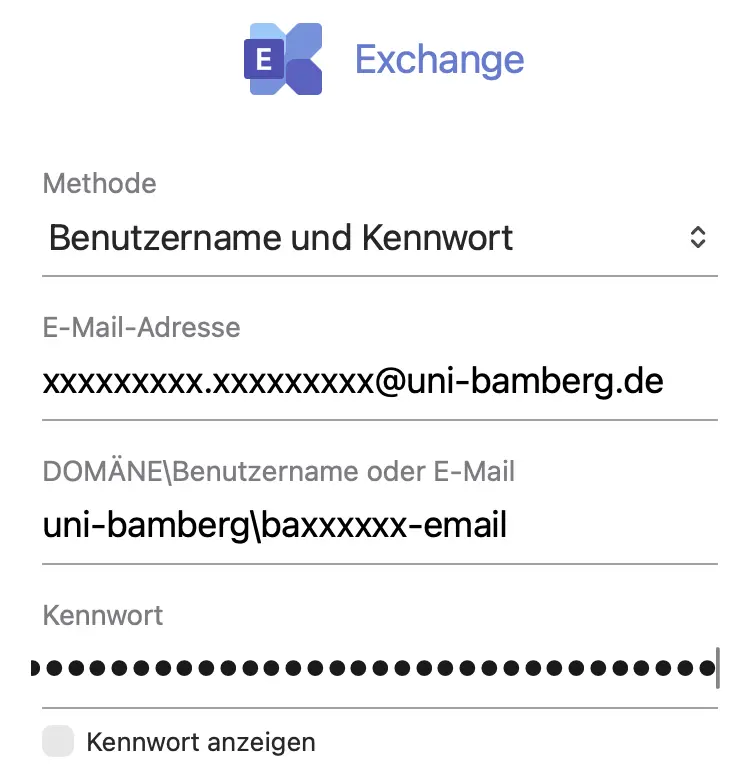
Figure 2: Setting up an e-mail account
If you have clicked on Continue as described above, a login window will now appear. Enter the relevant data here as follows:
Method: User name and password
E-Mail address: Your university e-mail address
DOMÄNE\User name or e-mail: uni-bamberg\Your personal BA-Number with the suffix -email
Example: uni-bamberg\baxxxx-email
Password: The password from the IAM-Portal under Email App Password
Now click on Add account. You may need to confirm the university certificate by clicking Next. After a moment, the account is set up and you can close the setup dialog by clicking on Done.
Figure 2 shows the login window with your user name and password filled in.
Note!
If the login fails, please enter the following under Server (Optional):