To set up an email account, you must have a valid user account (BA-Number).
To set up a task-specific email account, you must already have been granted the necessary access permissions (for example, by the management of your organizational unit), which means you must be a member of the relevant security group.
Adding an email account
Attention!
A new account management feature was introduced in Thunderbird version 142. To add mailboxes, you must disable account management.
Open Thunderbird's settings, scroll down to the Account Management (EXPERIMENTAL) section under General, and uncheck the box next to Create accounts in the new account manager.
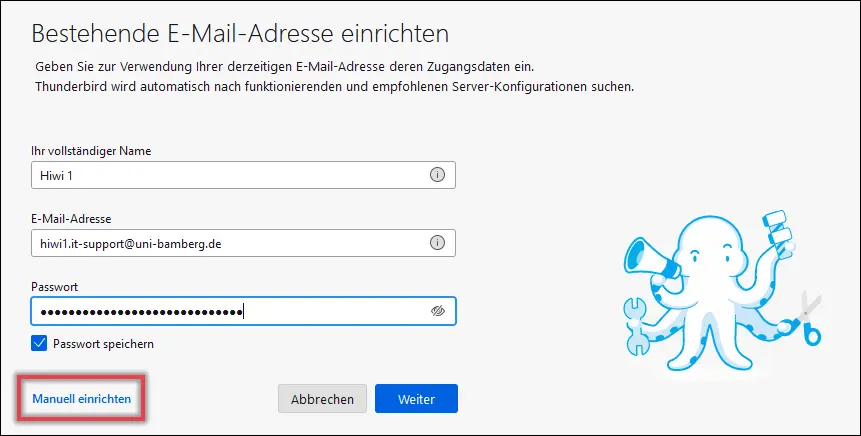
If you haven't set up an email account in Thunderbird yet, the welcome window will appear. This window gives you the option to set up an existing email address. Enter your name, email address, and password, and then select Set up manually in the lower-left corner. The additional setup options will now open.
If the welcome window does not appear, or if you want to add an existing email account, you can navigate to the setup window by selecting File - New - Existing Email Account...
In the setup window, first enter your name, e-mail address and the password from the IAM-Portal under Email App Password. If you want to avoid having to log in every time, you can save the password. Now click “Set up manually.”
Figure 1 illustrates the process described above, and the button for manual setup is highlighted.
Figure 1: Window for setting up an existing email address
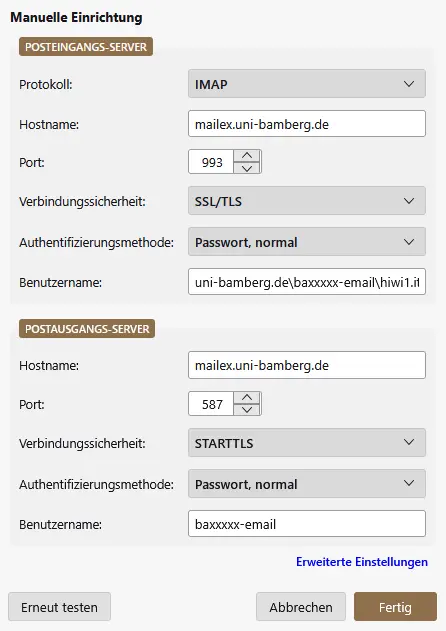
Figure 2: Email Account Configuration
Enter the following information:
Incoming mail server:
IMAP
Server-Adress: mailex.uni-bamberg.de
Port: 993
SSL: SSL/TLS
Authentication: Password, normal
Username: uni-bamberg.de\Your personal BA number followed by -email\The part of the work-related email address before the @ symbol
Outgoing mail server:
Server-Adress: mailex.uni-bamberg.de
Port: 587
SSL: STARTTLS
Authentication: Passwort, normal
Userrname: baxxxxx-email
Example of a username for the incoming mail server: uni-bamberg.de\baxxxxx-email\hiwi1.it-support
Click Done to save your settings and complete the setup of your Mailex account.