To be able to integrate an e-mail account, you must have a valid user account (BA number + corresponding password).
Adding an e-mail account
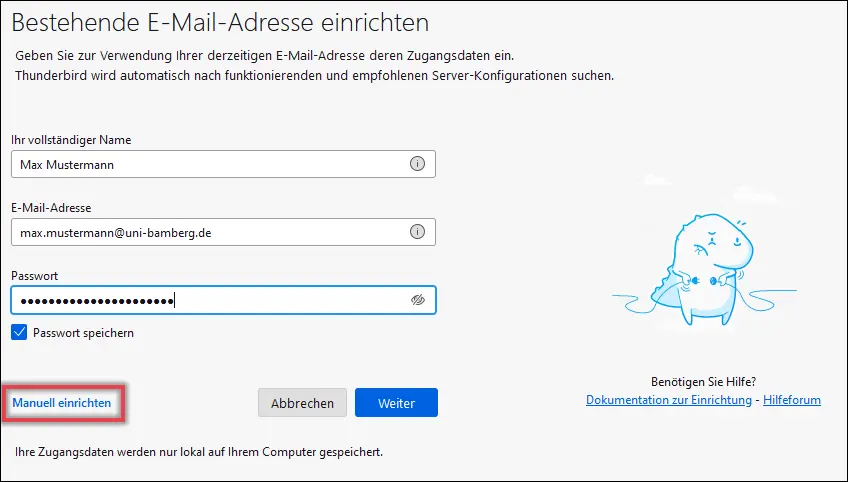
If you have not yet set up an e-mail account in Thunderbird, the welcome window will appear. This gives you the option to set up an existing e-mail address. Enter your name, your e-mail address and your corresponding password and then select Set up manually at the bottom left. The further setup settings will now open.
If the welcome window does not appear or you would like to add another existing account, you can navigate to the setup window via File - New - Existing e-mail account... to navigate to the setup window.
In the setup window, first enter your name, e-mail address and the password from the IAM-Portal under Email App Password. If you want to avoid having to log in again each time, you can save the password. Now click on Set up manually.
Figure 1: shows the process described above and the button for manual setup has been highlighted.
Figure 1: Window for setting up an existing e-mail address
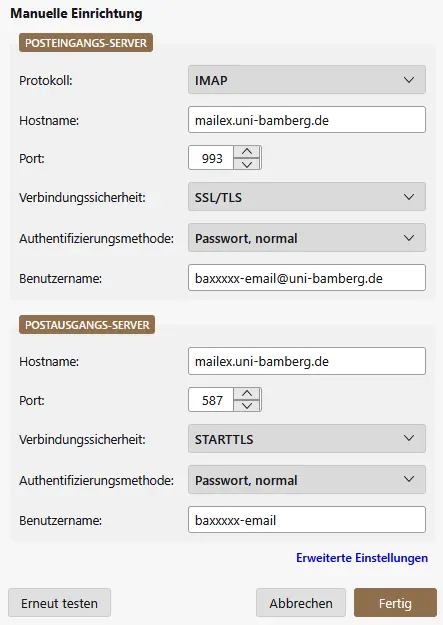
Figure 2: E-mail account configuration
Enter the following data:
Incoming mail server:
IMAP
Server address: mailex.uni-bamberg.de
Port: 993
SSL: SSL/TLS
Authentication: Password, normal
Username: baxxxxxx-email@uni-bamberg.de
Outgoing mail server:
Server address: mailex.uni-bamberg.de
Port: 587
SSL: STARTTLS
Authentication: Password, normal
Username: baxxxxxx-email
Click on Done to accept the details and complete the setup of your Mailex account.
Figure 2 shows the previously specified configuration.