To set up an email account, you must have a valid user account (BA number + corresponding password).
These instructions apply to iOS 14 and later. Please note that the interface may look different in other versions.
Adding an email account
Figure 1: Add Account
Go to the Mail > Accounts menu item via Settings.
Then tap Add Account.
Figure 2: Add Mailbox
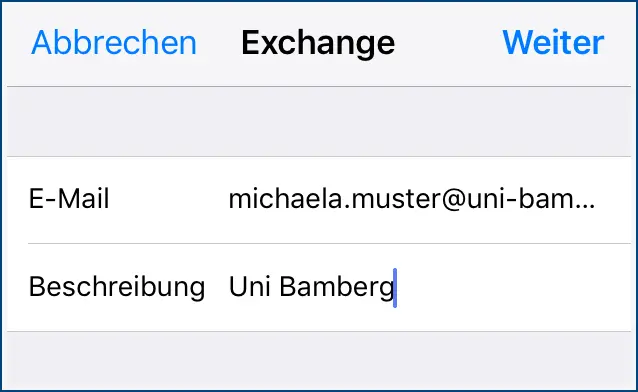
After tapping Add Account, select Microsoft Exchange as the account type. You will then be asked for your login credentials. Fill out the first window as follows:
Email: Your university email address
Description: Any, for example, the University of Bamberg
To continue, tap Next. Please confirm the message that appears by tapping Sign In.
Figure 3: Setting up a mailbox for employees
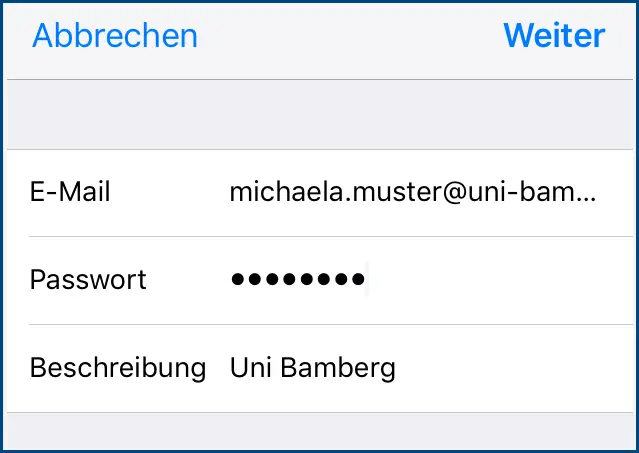
Next, enter the password from the IAM-Portal in the email-app and tap Next. Finally, you will be asked which services you would like to use with the email account you just set up. To disable a service you don't want, simply slide the corresponding slider to the left. Click the Save button to save your email account; you'll find it in the Mail app.