To set up an email account, you must have a valid user account (BA-Number + corresponding password).
These instructions apply to Android version 13.0 and later; we cannot provide support for earlier versions of Android. The setup process and screenshots for other Android versions may therefore differ from the procedure described here. If you are unsure about the setup, please make only the settings listed below and leave other options as they are set by default on your system.
These instructions were created using the Gmail app. The process may vary for other email apps.
Adding an email account
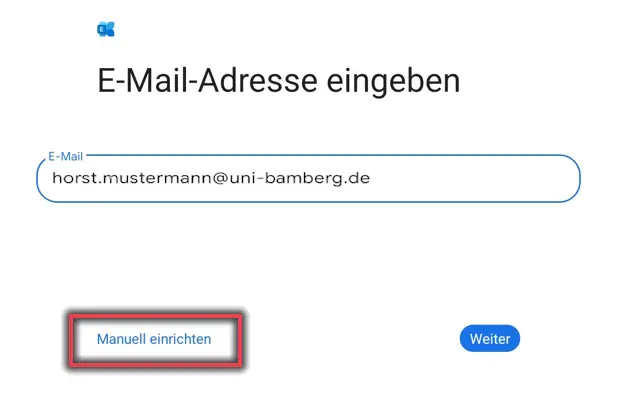
Figure 1: Entering an email address and setting up manually
After adding a new account in the email app, select Exchange. This may vary depending on the app; for example, Exchange and Office 365 may also be listed as possible account types.
Now enter your work email address and tap Set up manually.
Figure 1 illustrates the process described above.
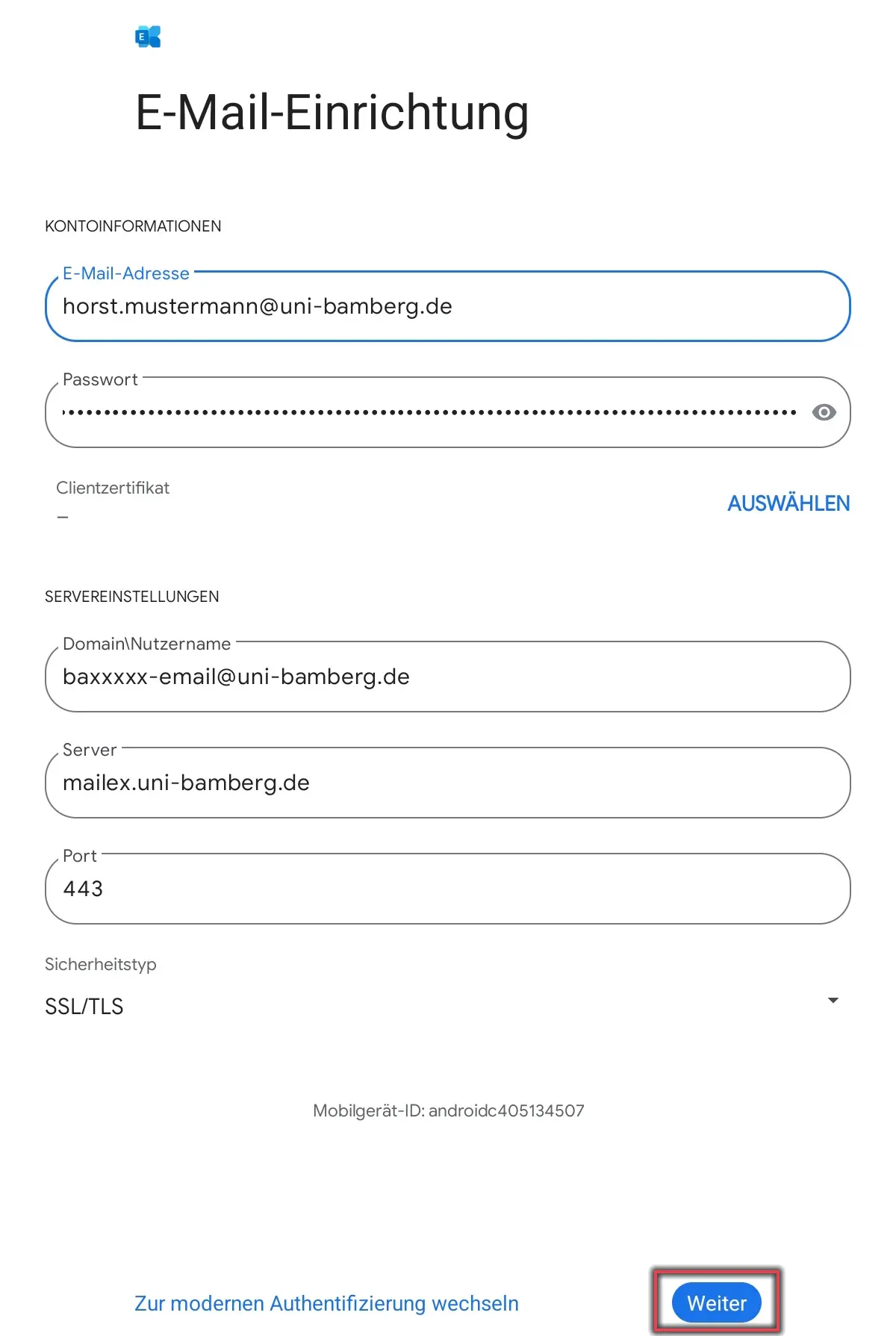
Figure 2: Configuring the mailbox settings
When setting up your email, enter the following information:
Password: The password from the IAM-Portal under “Email-App Password”
Domain\Nutzername: BA-Number with the suffix -email@uni-bamberg.de
Bsp.: baxxxx-email@uni-bamberg.de
Server: mailex.uni-bamberg.de
Port: 443
Finally, tap Next.
Figure 2 illustrates the configuration described above using an example.