Set up staff e-mail account in Outlook under Windows
Important note:
To be able to integrate an e-mail account, you must have a valid user account (BA number + corresponding password).
Adding the e-mail account
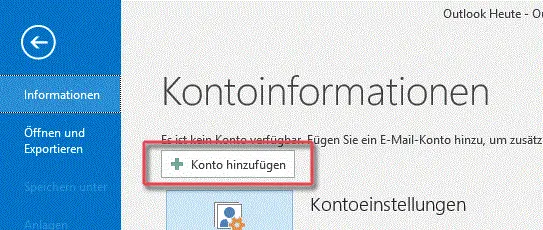
Figure 1: Adding a new e-mail account
When you run Outlook for the first time, the configuration wizard starts automatically.
If you want to add another account in Outlook, click on File and on Add account, as shown in Figure 1.
Setting up the e-mail account
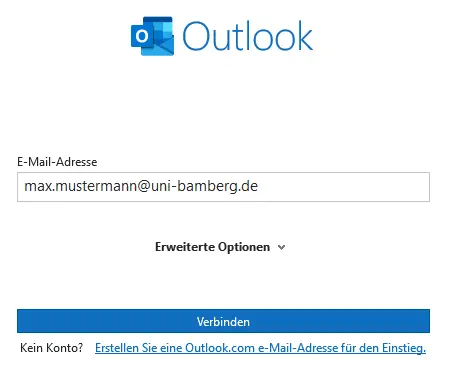
In the new dialog box, enter the email address you use and click Connect.
Figure 2 shows the input mask with an example e-mail address.
After clicking on Connect select Exchange in the window Select account type that appears.
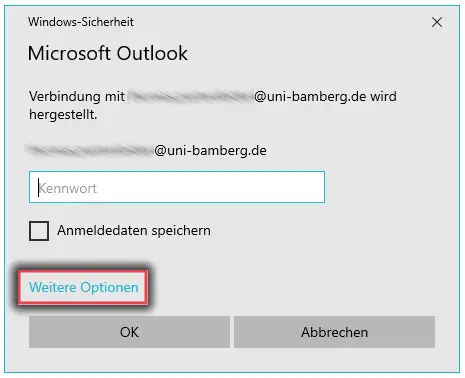
Figure 3: Windows security Further options
You will now be asked for your login details. First click on More options and select Use another account.
Figure 3 shows the Windows security window with the Other options highlighted.
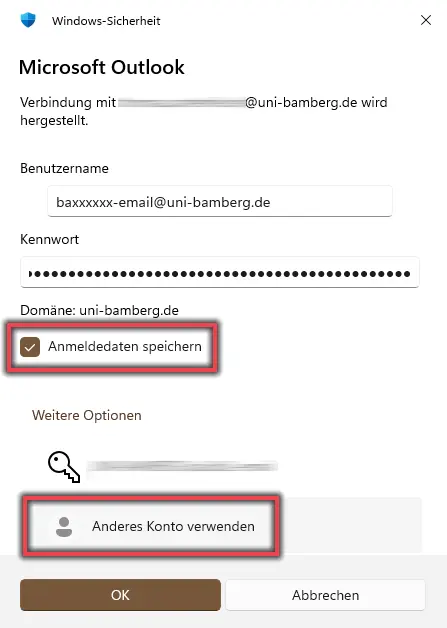
Figure 4: Enter login details
First select Use another account and then enter your login information as follows:
- User name: baxxxxxxx-email@uni-bamberg.de (your personal BA number)
- Password: The password from the IAM-Portal under Email App Password
and check the box Save login data.
Figure 4 shows the login window with the user name and password filled in and the boxes Save login data and Use another account checked.
Do you still have questions?