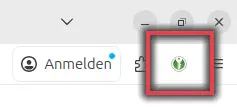
Before setting up the passkey, check that the KeePass browser add-in is also connected to the KeePassXC app database. If the add-in is green without an X, the connection is active.
Figure 1: Add-in KeePass Browser active connection
Create passkey on another device
Log in to the IAM-Portal via the device on which you have already rolled out Passkey.
The code matrix and confirmation code should be displayed for selection as a registration option.
Please enter the confirmation code you copied earlier into the field provided on the Getpasskey page and click Verify.
Figure 1: Logging in to Passkeys Uni-Bamberg with confirmation code
Roll out token
Figure 3: Roll out and register tokens
Select the Roll out token menu item there.
Since you have to roll out a passkey for each device, it is advisable to define a description accordingly.
Therefore, assign an appropriate name under Description, such as “Linux login.” Confirm this by clicking Roll out token.
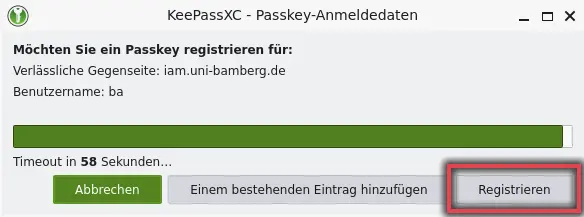
The temporary pop-up message from the KeePassXC app KeePassXC - Passkey Login Details will then be displayed. Please click on the Register option promptly. Otherwise, the token will be deactivated and deleted.
Login with passkey in the web browser
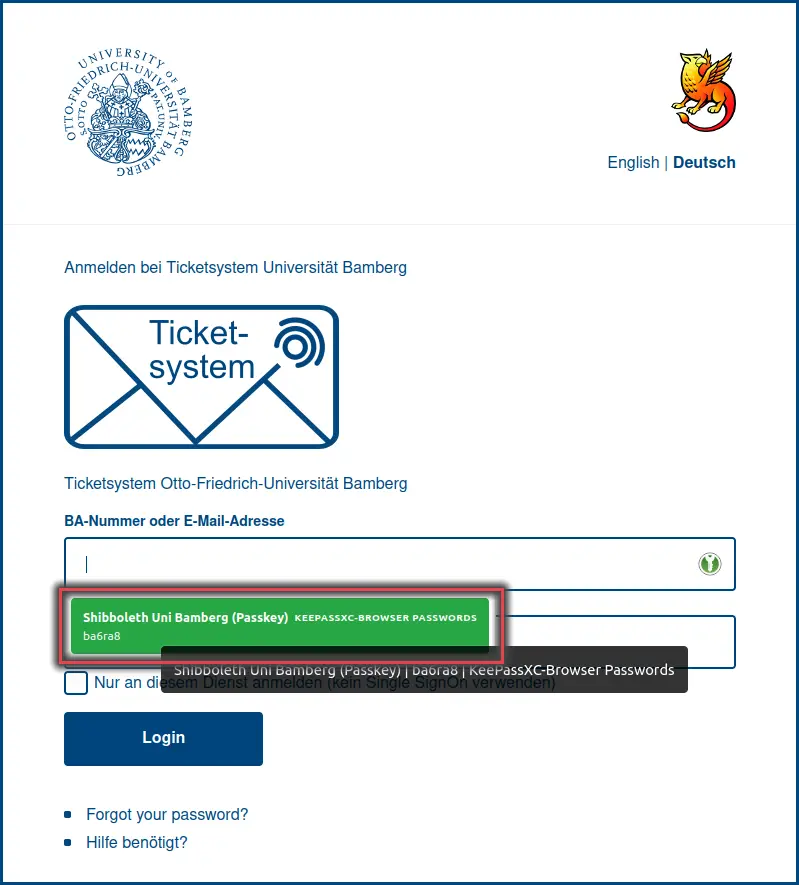
Please make sure that you first use your BA number and password when logging in to the Firefox web browser.
Figure 4: Login via Shibboleth with BA number
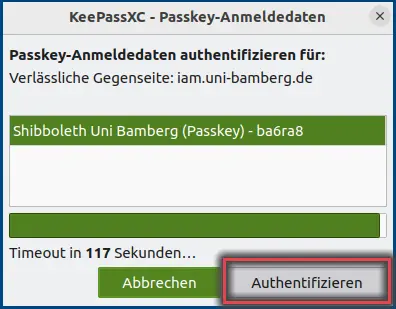
Figure 5: Confirm authentication in KeePassXC Desktop
Then confirm the process in KeepassXC by clicking the Authorization button.
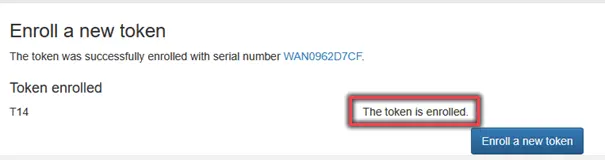
If the passkey has been successfully stored, you will receive the message The token has been rolled out in the next window.
Figure 6: Passkey successfully rolled out
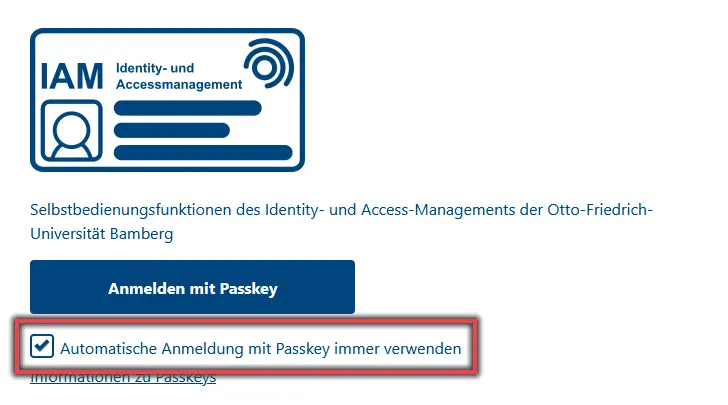
Figure 7: Automatic login with passkey
Note!
Once the passkey has been rolled out, you can tick the box for Always use automatic login with passkey when logging in to Shibboleth. This means you no longer need to enter your BA-Number and password before you can use the passkey.
Important!
Create the Codematrix via the IAM-Portal. If there are any problems with the passkey you have set up, you can use the Codematrix to create a new passkey.
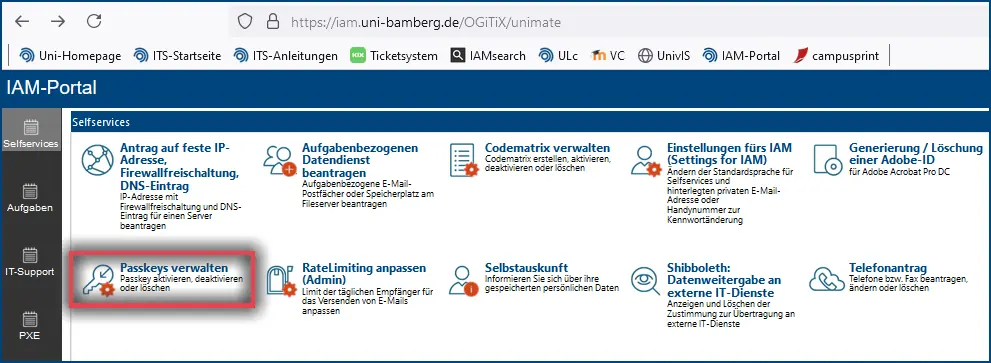
Passkeys are managed via the IAM-Portal (iam.uni-bamberg.de). You can deactivate or delete your passkeys under the menu item Manage Passkeys. Please note that the corresponding passkey must be deleted immediately if the device is lost or stolen.