The code matrix and confirmation code should be displayed for selection as a registration option.
Please enter the confirmation code you copied earlier into the field provided on the Getpasskey page and click Verify.
Figure 1: Logging in to Passkeys Uni-Bamberg with confirmation code
Roll out token
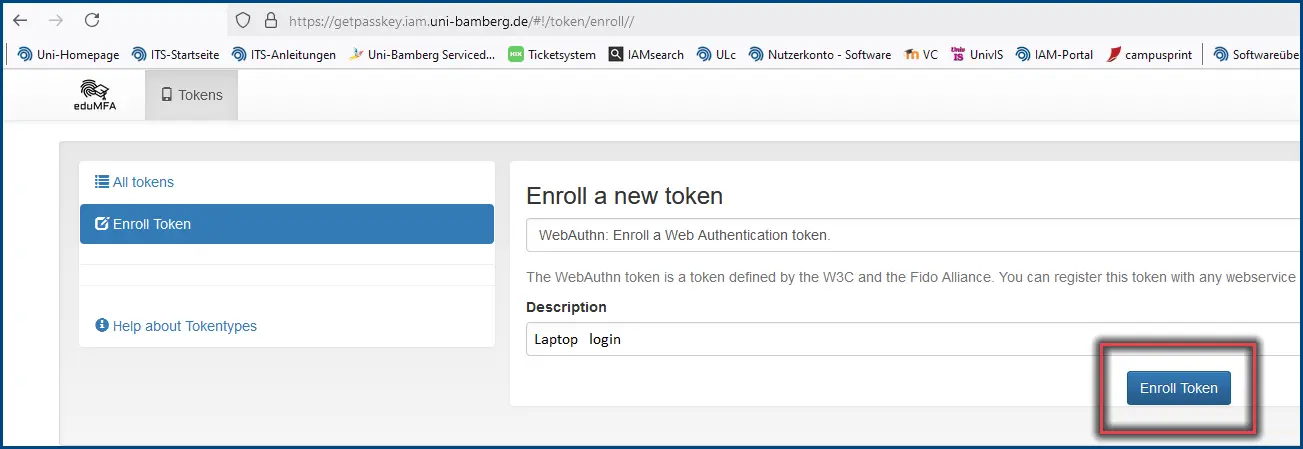
Select the menu item Enroll Token.
As you have to roll out a passkey for each device, it is advisable to define a description accordingly. Therefore, assign a corresponding name under Description, such as ‘Laptop login’. Confirm this with Enroll Token.
Figure 2: Describing the token name and enroll the token on the website
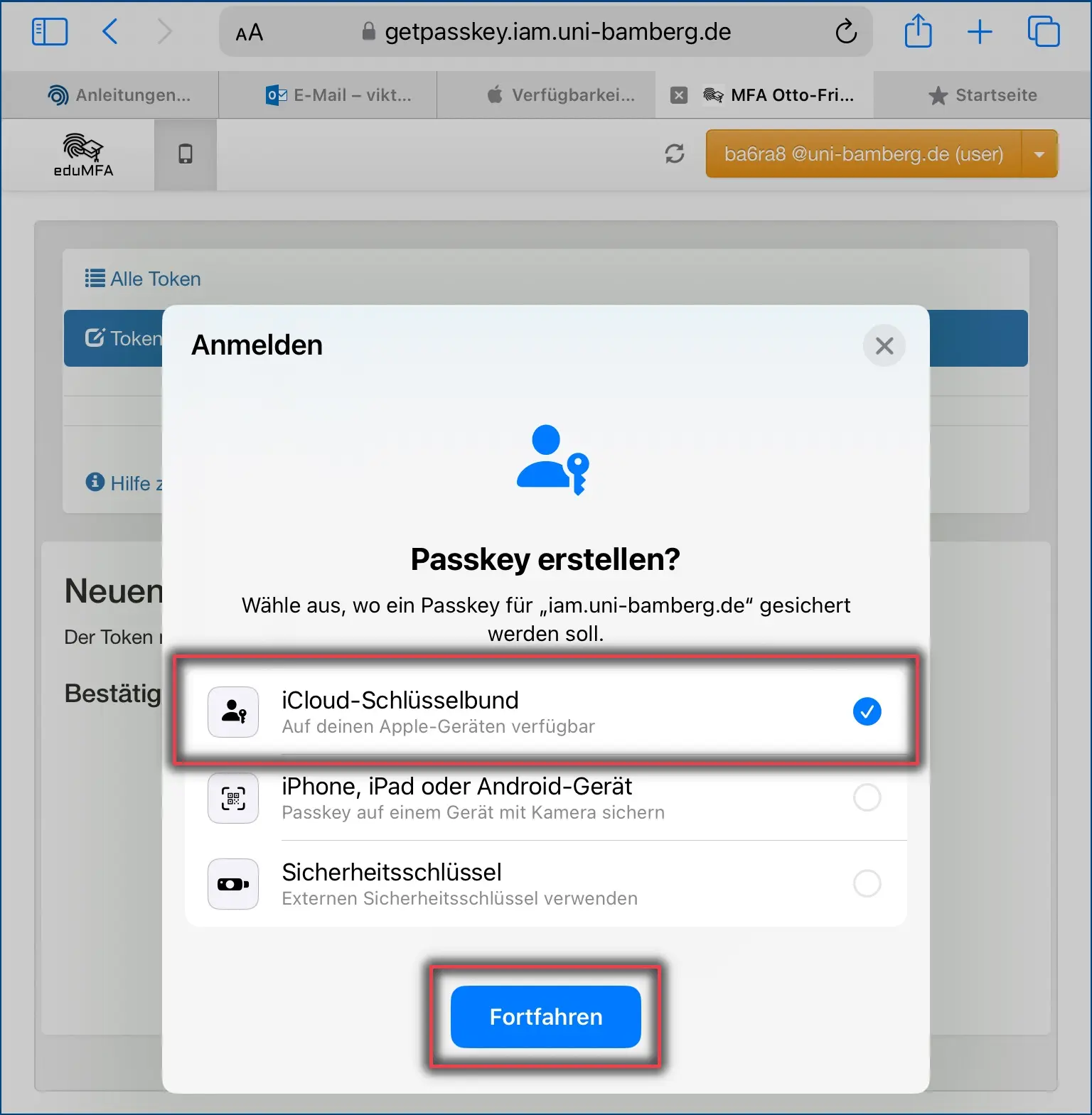
Otherwise, select iCloud Keychain in the window that opens and confirm with Continue.
Figure 3: iCloud-Keychain open
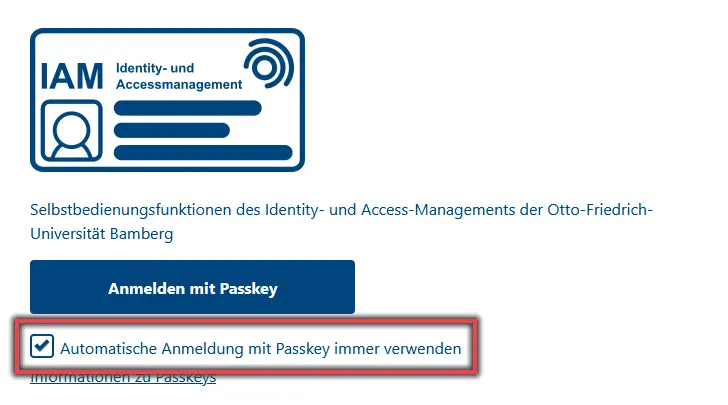
Figure 5: Automatic login with passkey
Note!
Once the passkey has been rolled out, you can tick the box for Always use automatic login with passkey when logging in to Shibboleth. This means you no longer need to enter your BA-Number and password before you can use the passkey.
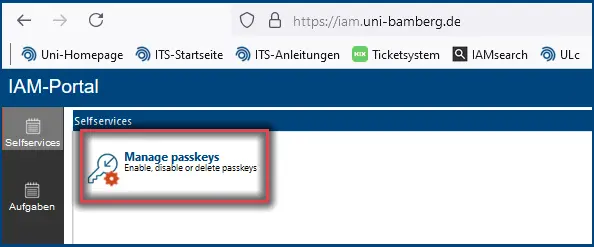
Manage passkeys
Passkeys are managed via the IAM-Portal (iam.uni-bamberg.de). You can deactivate or delete your passkeys under the menu item Manage Passkeys. Please note that the corresponding passkey must be deleted immediately if the device is lost or stolen.